Can Power BI Connect to Odoo?
Yes but not out of the box. Odoo does not offer native support for Power BI integration or built-in advanced data visualization tools. If you've tried pulling live Odoo data into Power BI Desktop before, you've likely run into a wall: there's no official connector, no direct API endpoint that Power BI can use out of the shelf, and the only alternative is manually exporting spreadsheets and importing them which defeats the purpose of real-time analytics entirely.
The Odoo Power BI Connector by Creyox fills this gap. It creates a direct, authenticated connection between your Odoo instance and Power BI Desktop, allowing you to pull live data from any Odoo model Sales, Accounting, Inventory, CRM, HR, Projects, and more without writing a single line of code or manually exporting anything.
Once connected, your Power BI reports and dashboards automatically reflect the latest data from Odoo. You can also publish reports to Power BI Service and configure scheduled refresh so your dashboards stay current around the clock, completely hands-free.
Overview
The Creyox Power BI Desktop Connector for Odoo is designed to give businesses of all sizes a fast, secure, and scalable path from their Odoo ERP data to meaningful business intelligence. Whether you're building executive dashboards, monitoring department KPIs, or doing deep-dive financial analysis, this connector ensures your Power BI reports are always working from live, accurate Odoo data not yesterday's export.
The connector works with both Odoo Community and Odoo Enterprise editions, making it accessible regardless of which Odoo plan your business runs on. Setup is straightforward: generate an authentication token in Odoo, paste your URL and token into Power BI Desktop, and start selecting the data models you need. No middleware, no ETL pipeline, no developer required.
Beyond basic data import, the connector also supports query-based data filtering letting you write SQL-style queries to fetch only the specific records you need rather than pulling entire tables. Combined with Power BI's native visualization layer, this gives data teams a powerful, flexible analytics setup built directly on top of their existing Odoo data.
What You Can Do Once Odoo Is Connected to Power BI
The connection itself is the enabler what matters is what becomes possible after it is live. Sales managers can build live pipeline dashboards that pull directly from Odoo CRM without waiting for a weekly export. Finance teams can run P&L analysis and cash flow reports against real-time Odoo accounting data, with drilldown by period, department, or cost centre. Operations and inventory teams can monitor stock levels, purchase orders, and delivery performance across all warehouses in a single Power BI dashboard that updates automatically.
For multi-company or multi-department Odoo setups, the connector lets you combine data from different models into unified Power BI reports joining sales order data with inventory movements and financial records in a way that Odoo's own reporting does not easily support. The result is cross-functional visibility built on the single source of truth your ERP already maintains.
Hot Features
◆ Real-Time Data Synchronization.
◆ Easy-to-Configure Settings.
◆ Dynamic Data Mapping.
◆ Automated Scheduled Refresh.
◆ Error Tracking.
◆ Powerful Analytics.
◆ Search Model to Select Data.
◆ Seamlessly share reports to Power BI Service.
◆ Improved Efficiency.
◆ Advanced Error Tracking.
◆ Gateway Support for On-Premise Data Access.
◆ Seamless Odoo-Power BI Connectivity.
◆ Data Import Using Queries. 🔥
Features
◆ Effortless Data Transfer.
◆ Automatic Data Mapping.
◆ Continuous Synchronization.
◆ Real-Time Response Capture.
◆ Troubleshooting and Support.
◆ User-Friendly Setup and Configuration.
◆ Multi-Model Data Sync.
◆ Comprehensive Log Tracking.
◆ Robust Security & Compliance.
◆ Query-Based Data Filtering. 🔥
◆ Comprehensive Sync History Tracking.
◆Easily publish reports to Power BI Service.
Work Flow
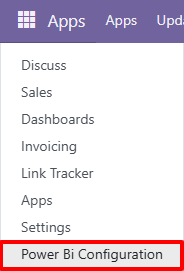
◆ Navigate to Power Bi Configuration app from the main menu.
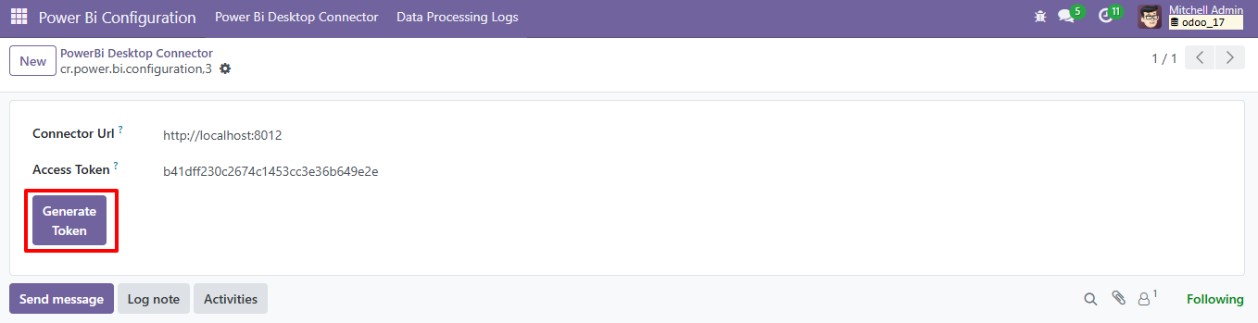
◆ Further user need to navigate to Power Bi Connector and create new record using New.

◆ Click on button Generate Token to generate Authentication Token for PowerBI.
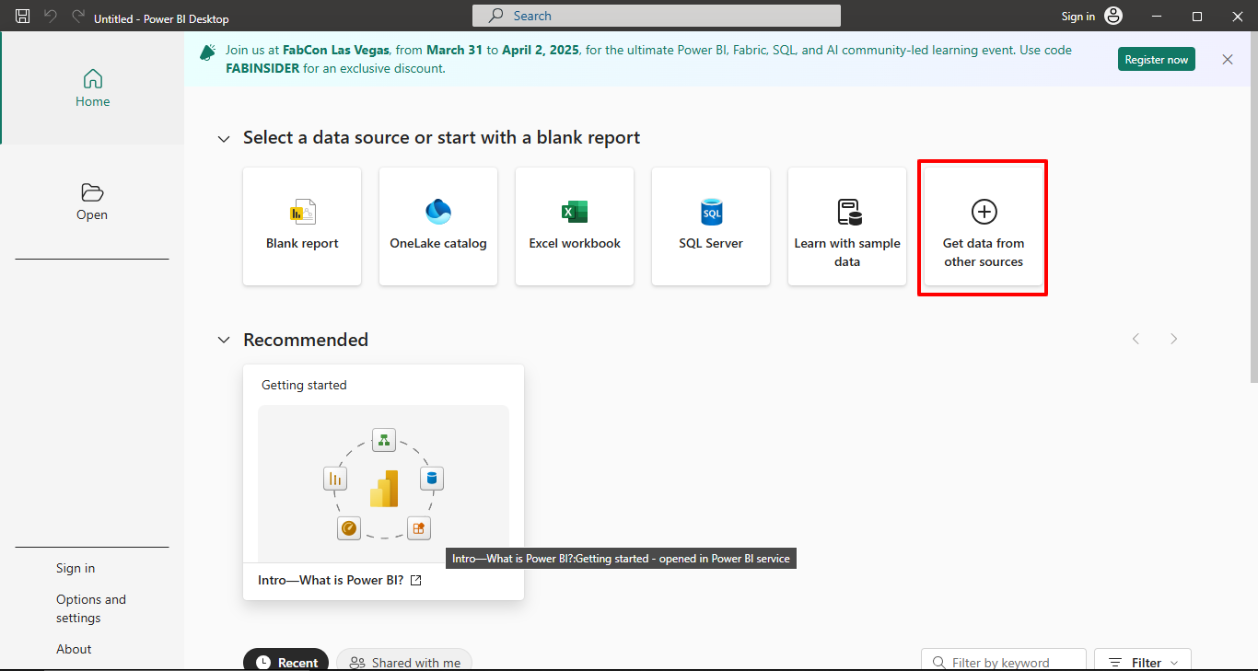
◆ Later user need to open PowerBi Desktop >> Get Data From Other Sources.
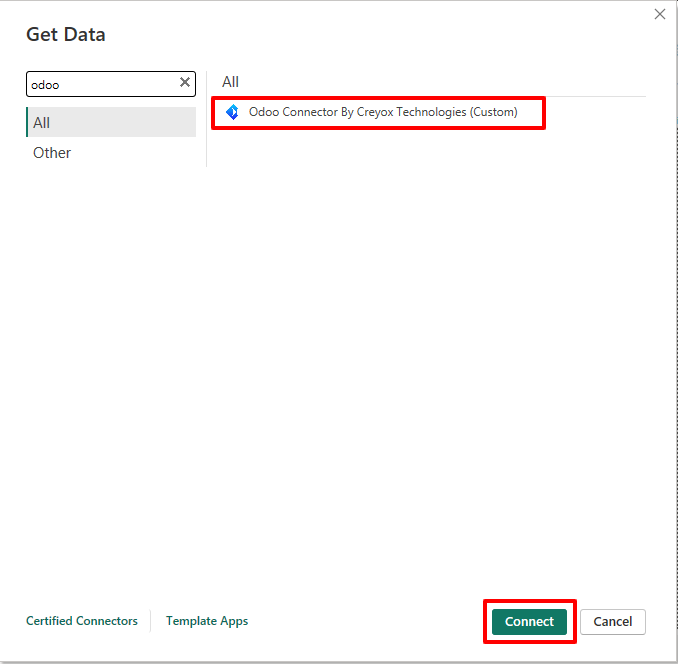
◆ Search Odoo Connector By Creyox Technologies and later click on Button Connect.
-
◆ Later add the URL and Authorization Token generated from Odoo.
-
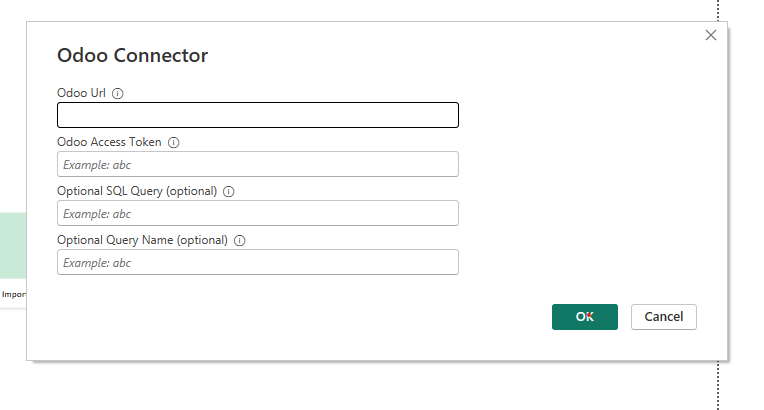
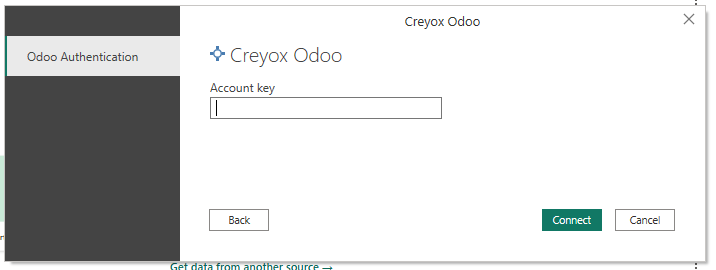
◆ Later user need to add the Authorization Token and click on Connect.
-
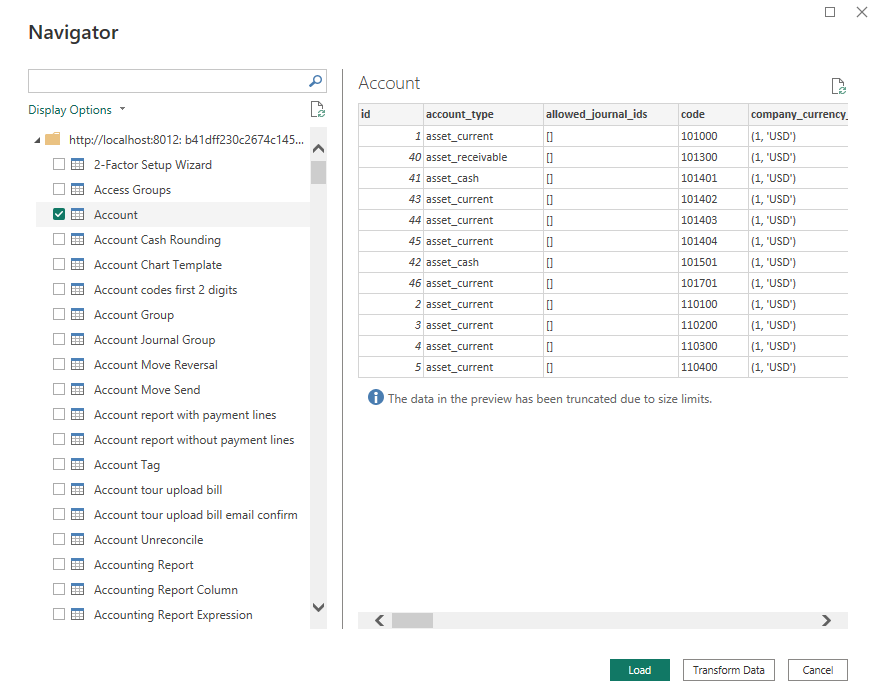
◆ Select The table of which you want to fetch the data.
-
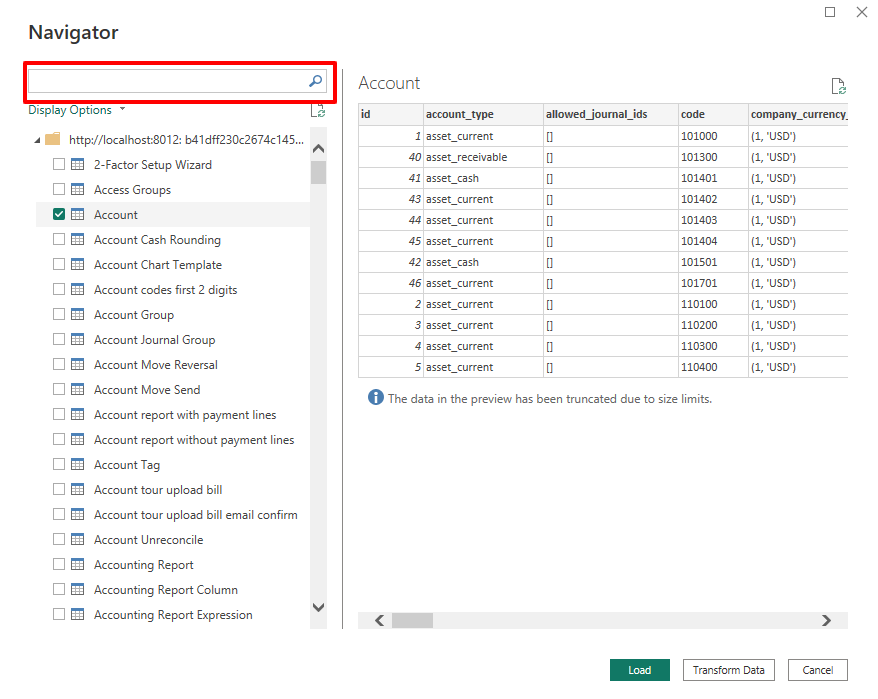
◆ Quickly find the tables you need using the search bar and then click on button Load.
-
◆ The Imported Data Can Be found in Power Bi Sheet.
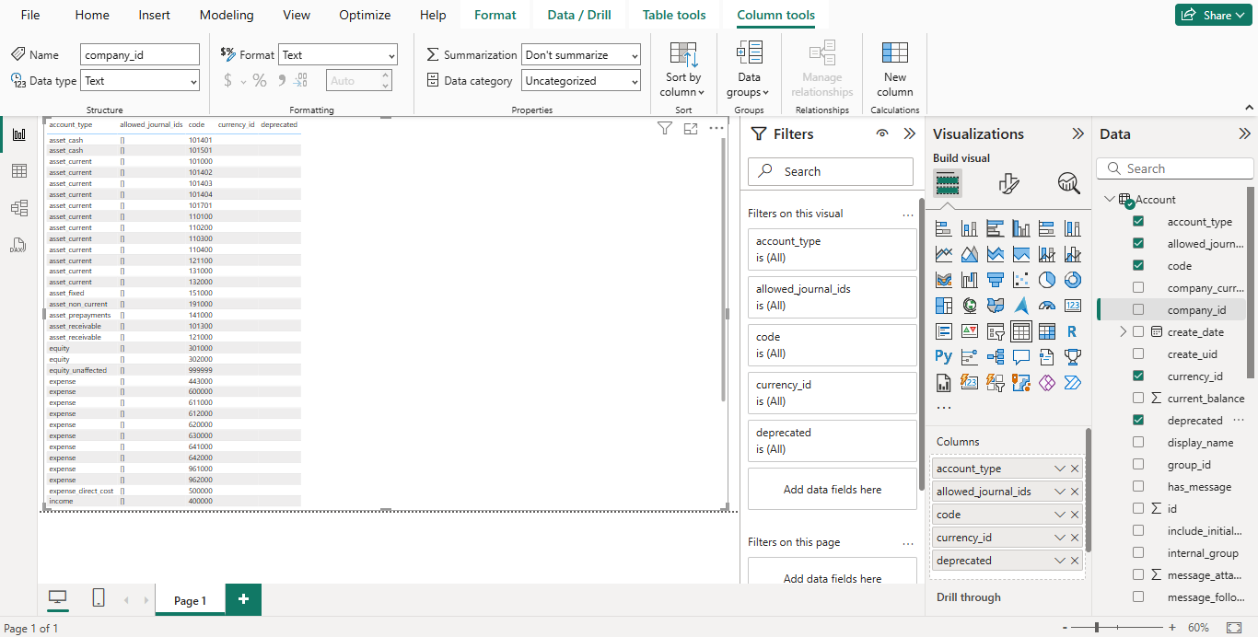
◆ Click On Refresh Data to Refresh Data of Table.
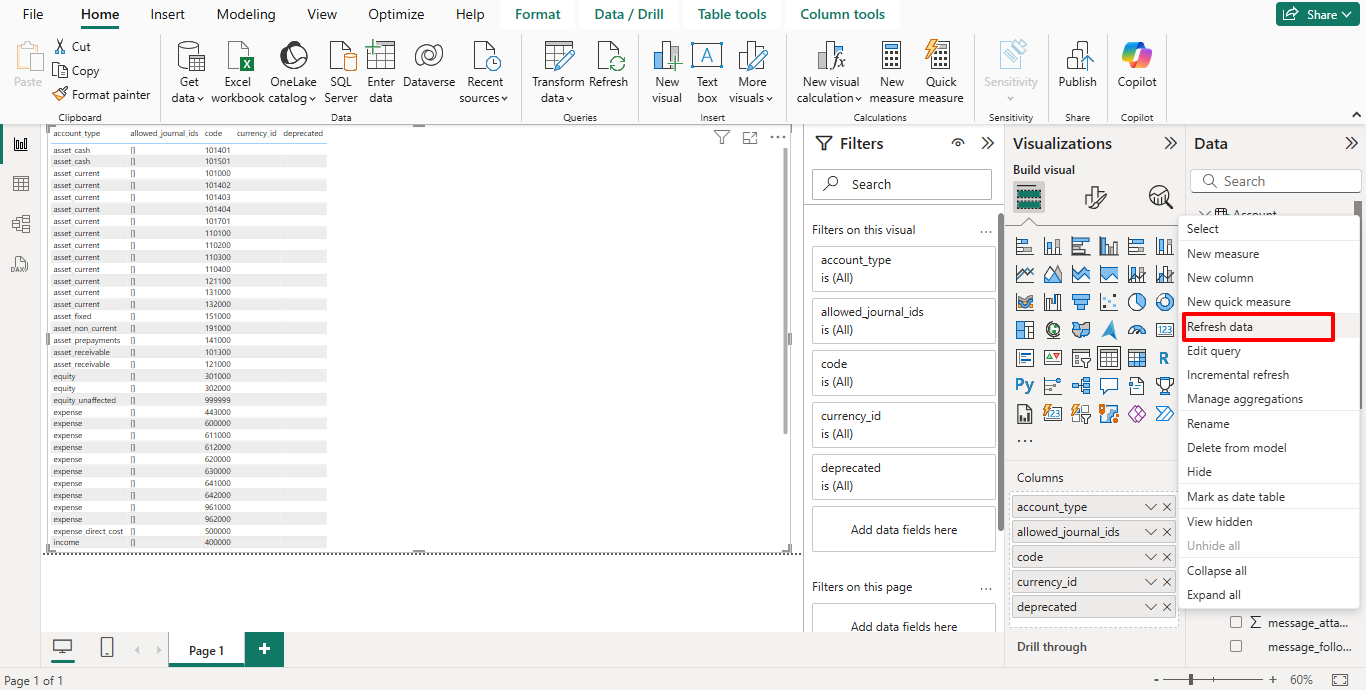
◆ Click on Button Publish to Publish Report in Power Bi Service.
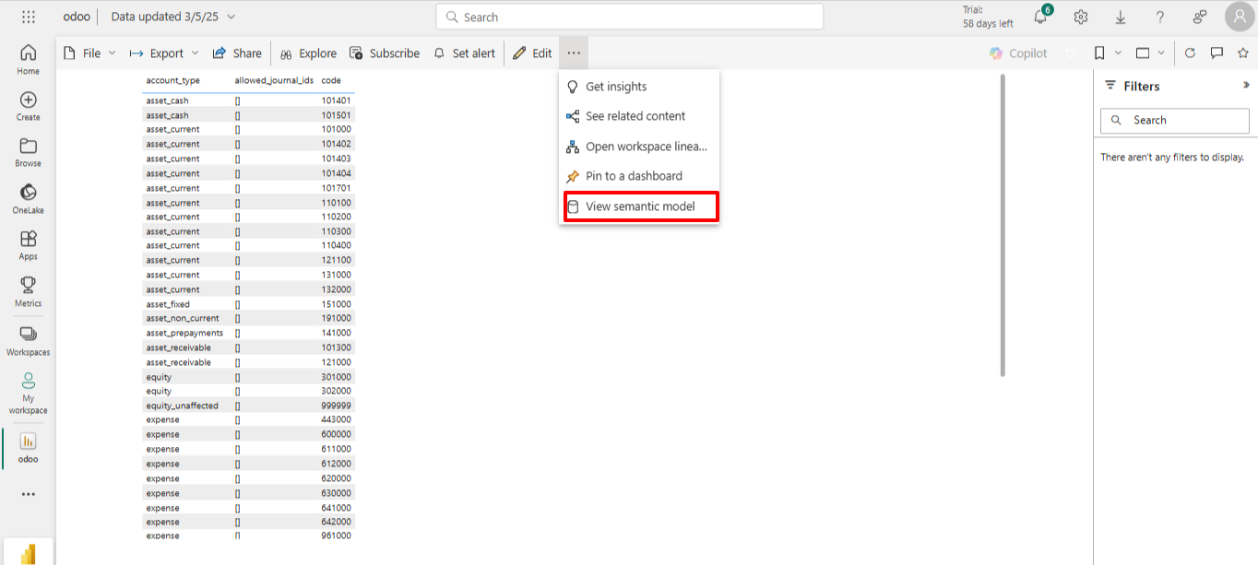
◆ Navigate to Report in Power Bi Service.

◆ Click on View Semantic Model.
◆ Click on Refresh to Refresh Data.
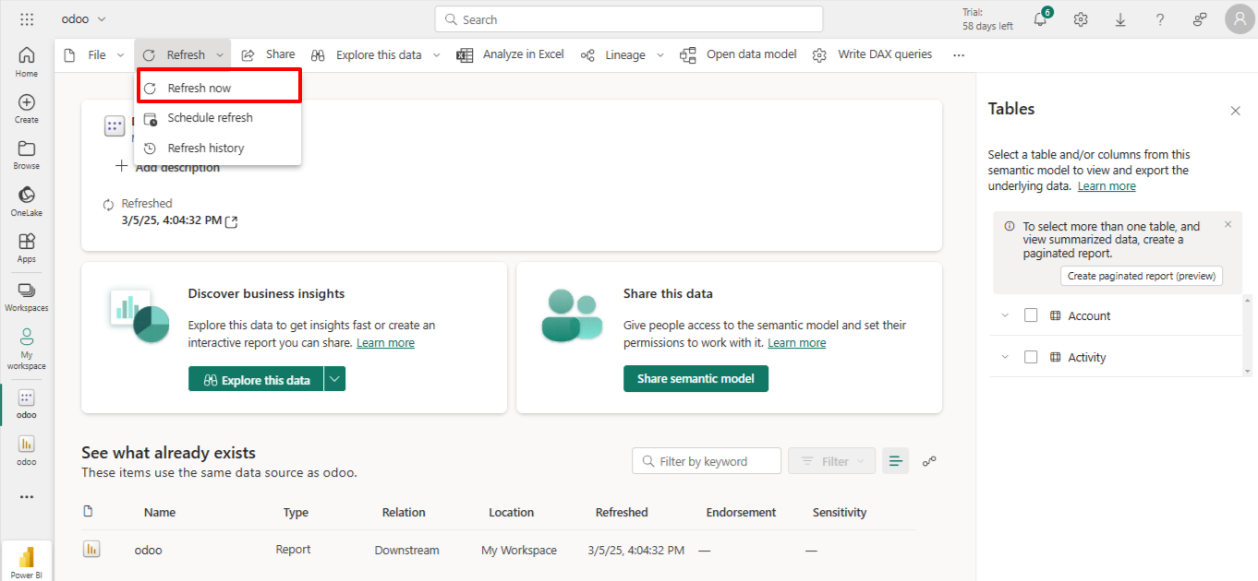
◆ Navigate to Refresh >> Schedule Refresh.
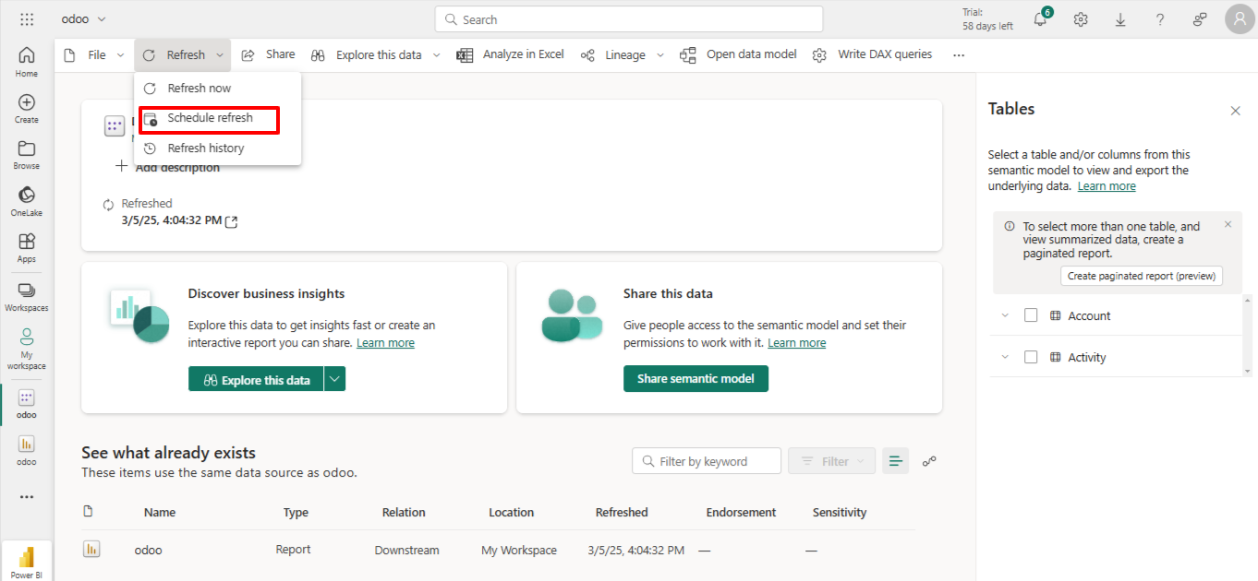
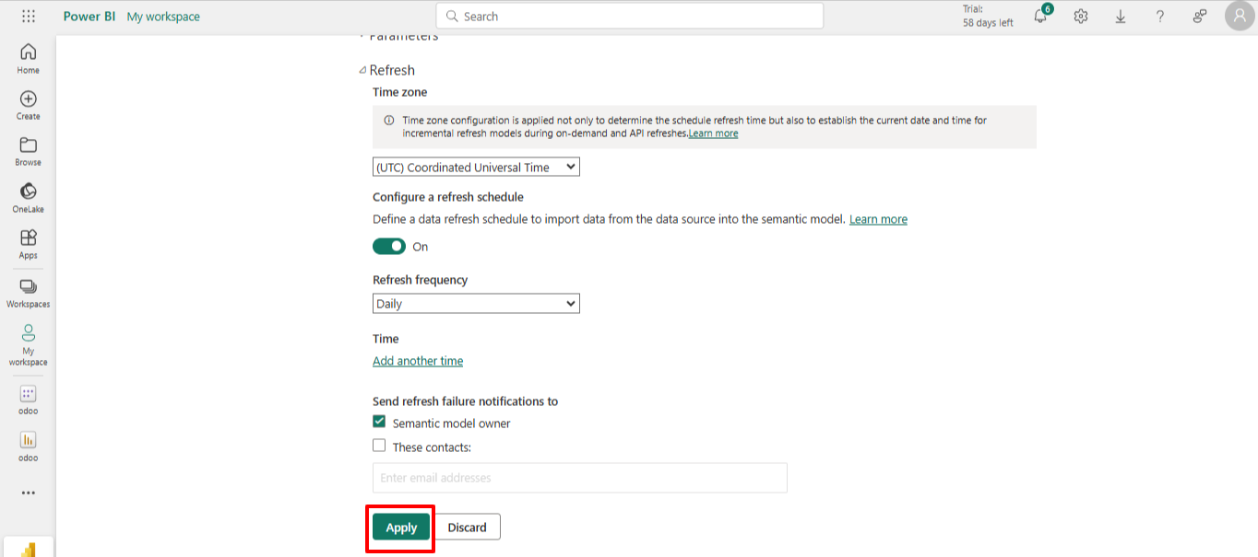
◆ Configure Schedule Refresh and then click on Load or Apply.
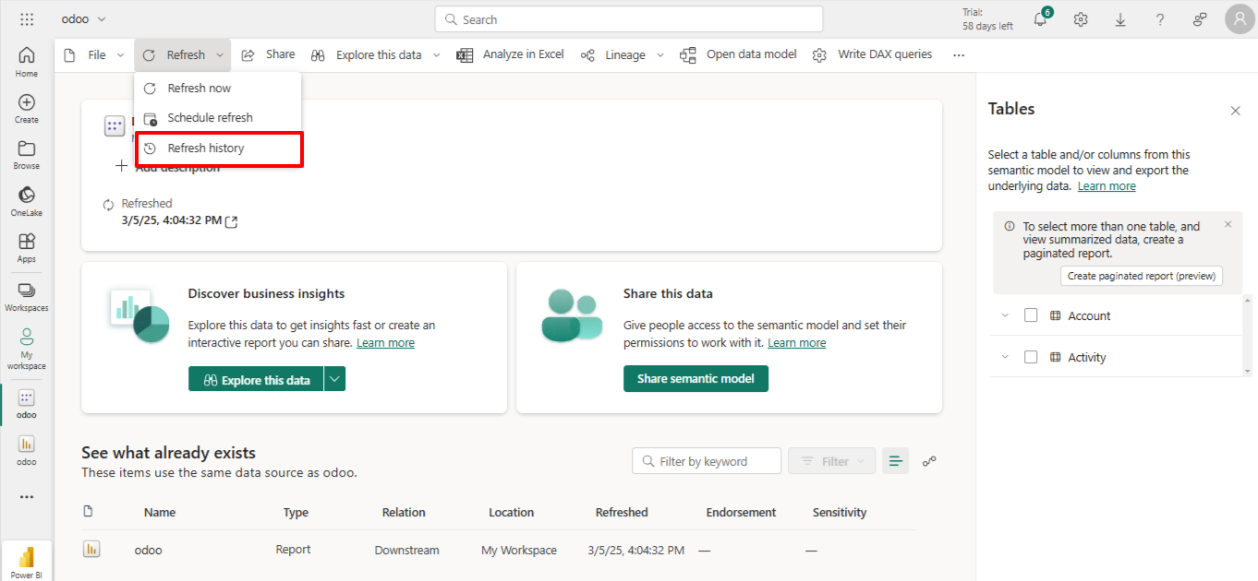
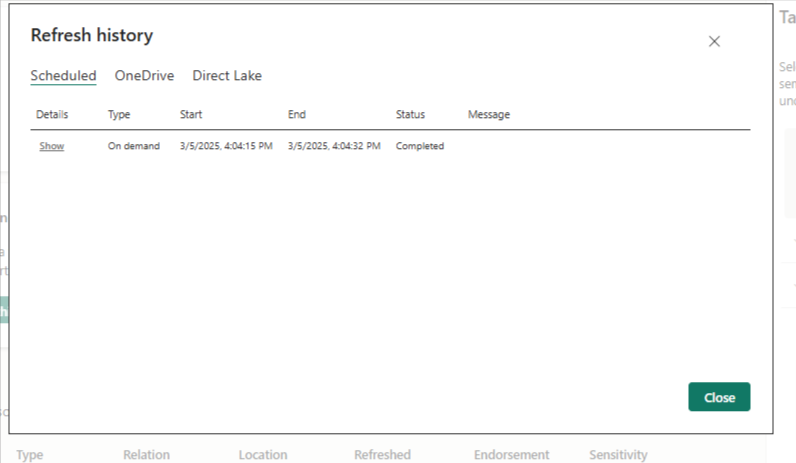
◆ Navigate to >> Refresh History .
◆ Here You can See Refresh History
◆ Navigate to >> Power Bi Desktop>> Odoo Connector By Creyox Technologies.
◆ To Fetch data Using Sql Query Write Query .
◆ Click On Button Ok.
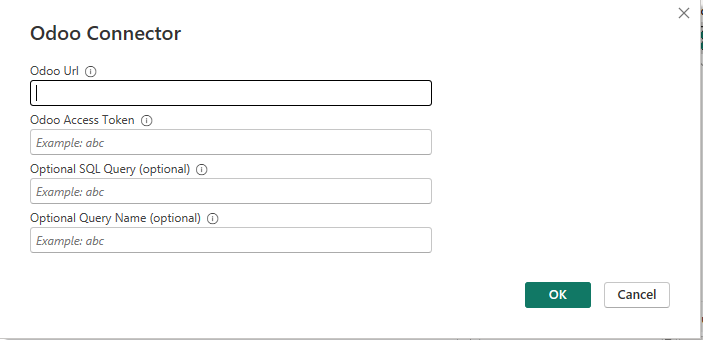
◆ The Imported Data Can Be found in Power Bi Sheet.
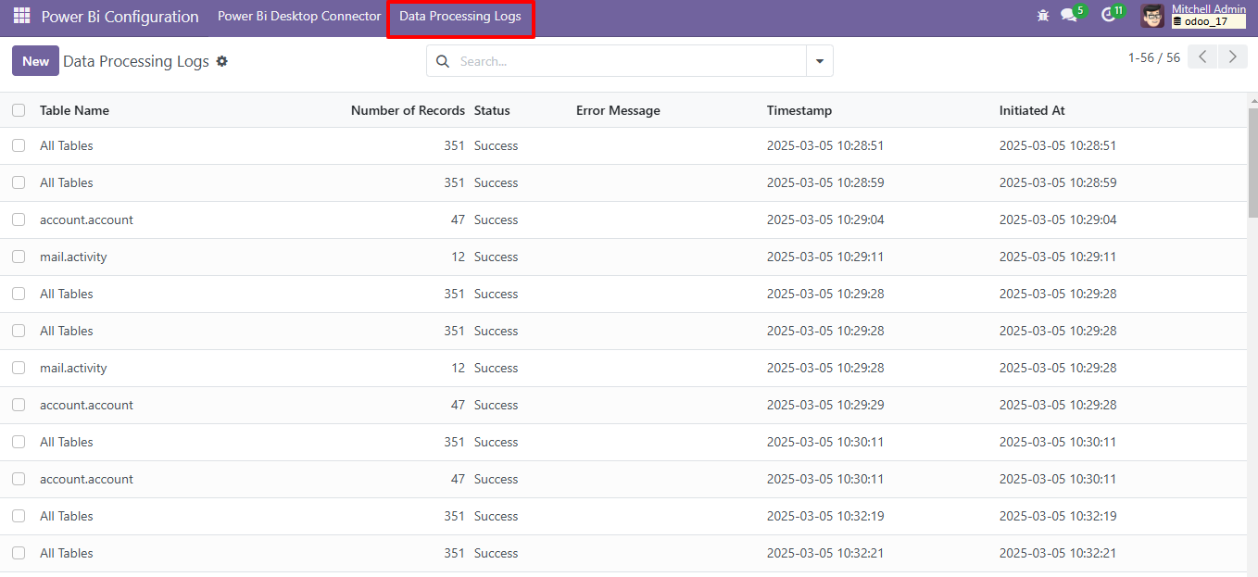
◆ In Odoo Navigate to Power Bi Connector >> Data Processing Logs .
◆ Transaction logs for syncing tables between Odoo and power Bi Desktop are available here.
Why Businesses Choose the Odoo Power BI Connector
Most Odoo users looking to connect their ERP to Power BI hit the same wall: no native integration, no direct API endpoint, and no way to keep dashboards current without manual work. The Odoo Power BI Connector solves this by giving you a direct, authenticated data pipeline so your reports pull from live Odoo records instead of last week's spreadsheet.
Unlike generic BI middleware or third-party ETL tools, this connector is purpose-built for Odoo. It understands Odoo's data models natively, which means you're not mapping fields manually or maintaining a fragile integration layer you just authenticate once and start building reports.
Frequently Asked Questions
The Odoo Power BI Connector is an installable Odoo app that creates a secure, authenticated connection between your Odoo database and Power BI Desktop. It lets you pull live data from any Odoo model Sales, Accounting, Inventory, CRM, HR, and Projects directly into Power BI reports, without manual exports or custom coding.
No, Odoo doesn't offer one out of the box. The Creyox Power BI Odoo Connector adds this capability as an installable Odoo app, giving you a secure, authenticated link between the two platforms without custom development.
Both. It's compatible with Odoo Community and Odoo Enterprise editions, so setup doesn't depend on which plan your business runs.
Yes. The connector supports query-based filtering, so you can write SQL-style queries to pull only the specific records you need instead of importing entire tables.
Both options are available. You can refresh manually with one click inside Power BI Desktop, or publish to Power BI Service and set up scheduled refresh so dashboards update automatically without any manual steps.
Yes. The connector uses token-based authentication you generate a secure token inside Odoo and use it to authorize the connection in Power BI Desktop, so no credentials are exposed.
No. Setup only takes generating a token in Odoo, then entering your URL and token into Power BI Desktop. There's no middleware, ETL pipeline, or coding involved.