The real question isn't whether Odoo 20 is a good release. The real question is whether your environment is ready for it. This Odoo migration checklist is built to answer that not with a feature tour, but with the actual audit, testing, and go-live steps you'd work through before touching a production database.
If you want the full feature breakdown first, that's covered in our Odoo 20 new features guide. If you're still deciding whether to upgrade at all rather than how, our Odoo 19 vs Odoo 20 comparison covers that decision in depth this post picks up from there and focuses purely on execution.
Quick Answer: Should You Upgrade to Odoo 20?
Upgrade now if most of these are true: you use Field Service and want it consolidated into Planning, your custom modules and third-party apps are confirmed compatible, you have time for a proper testing cycle (not a weekend), and you operate in a country with compliance updates relevant to you.
Wait if your custom code is heavy and unverified, you're mid-project, or your current setup has no pressing problem Odoo 20 solves. A version upgrade should fix something real, not just keep you current.
Before You Touch Anything: Pre-Migration Checklist
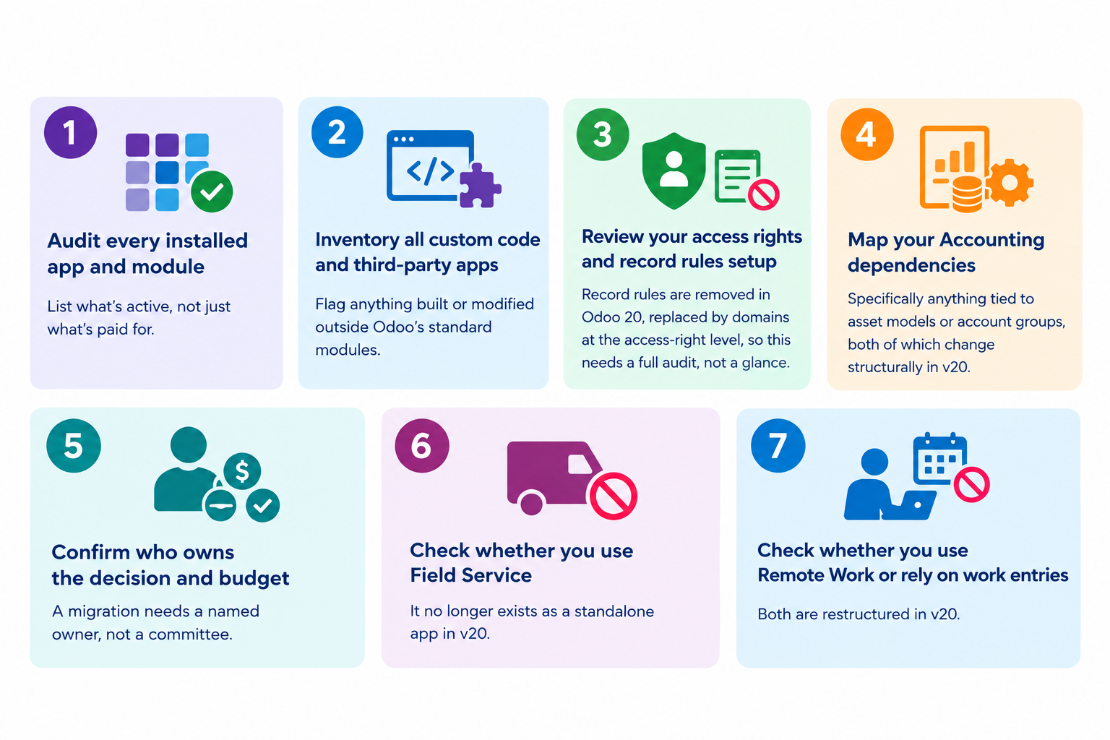
If any box here raises a question you can't answer confidently, that's your starting point not the migration itself.
Step-by-Step: The Odoo 20 Migration Process
This is a condensed execution checklist. For a fuller discussion of what's structurally different and who should upgrade at all, see our Odoo 19 vs Odoo 20 comparison this section assumes you've already made that call.
- Back up your full production database. Standard ERP practice, not specific to Odoo 20, but non-negotiable before any upgrade.
- Request an upgrade test database through Odoo's own upgrade process, rather than upgrading production directly. Odoo provides an official path for this check current steps in the Odoo 20 release notes and Odoo's upgrade documentation before you start, since exact tooling can change between releases.
- Run the upgrade on the test database first. Treat this as a dry run, not a formality.
- Review and fix custom module compatibility. This is usually the single longest step budget real time for it, not a single afternoon.
- Re-test Accounting thoroughly. Confirm depreciation models replacing your asset models correctly, check your chart of accounts under the new parent-account structure, and verify payment statuses ("Paid" and "Reconciled") match what your team expects.
- Re-test Payroll if you use it. Work entries have been removed, and work entry types are now merged with time off types payslip calculations depend on this.
- Run user acceptance testing (UAT) with real staff doing real workflows not just an IT team clicking through screens.
- Go live, then monitor closely for the first stretch post-launch. Our Odoo migration team typically treats this as its own phase, not an afterthought.
Module-by-Module Checklist: What to Specifically Re-Check
Accounting
- Confirm all assets migrated correctly from asset models to depreciation models.
- Review chart-of-accounts structure under parent accounts (account codes are now optional to check if anything relies on them).
- Verify payment status labels across reports, filters, and dashboards ("In Process" → "Paid," "Paid" → "Reconciled").
- Re-test bank reconciliation under the new bank-consistency rule, which requires every bank-linked entry to trace to an actual bank transaction.
HR / Payroll
- Confirm payslip calculations still work with work entries removed.
- Check that time off types and work entry types merged as expected.
- Re-verify any employee contract date changes Odoo 20 blocks contract date edits that would affect existing payslips.
- Confirm the Remote Work module's data carried over correctly into Employees.
Inventory / Manufacturing
- Review bill-of-materials consumption settings flexible consumption is now always on, regardless of prior configuration.
- Check the new single "Produce" button workflow in Manufacturing, Shop Floor, and Barcode.
- Re-test the returns process the return wizard has been removed in favor of a simplified flow.
Field Service / Planning
- Confirm all active Field Service data (shifts, worksheets, scheduling) migrated into Planning.
- Re-test any automation or reporting that referenced the old Field Service app directly.
Sales / CRM
- Re-check quotation templates for new subsection and "Hide Price"/"Hide Composition" options.
- Review lead distribution rules under the new rotation settings.
AI / Automation (if adopting)
- Confirm your IAP credit budget covers expected AI agent usage.
- Review any automation built on the old "topics" terminology, now renamed "skills."
- If using MCP connectivity, re-test external tool integrations separately from the core upgrade.
Common Migration Mistakes to Avoid
- Skipping the access-rights audit. Record rules were removed in v20 skip this step and you risk exposing data that should be restricted, or locking out users who need access.
- Assuming custom modules "probably still work." Structural changes to Accounting and access rights are exactly the kind of thing that breaks custom code silently. Our Odoo customization team flags this as the most common cause of post-upgrade support tickets.
- Testing on production. Obvious in theory, common in practice when timelines get tight.
- Forgetting Payroll dependencies on work entries. If work entries are removed and nothing maps them to the new structure, payslip calculations can quietly go wrong.
- Treating UAT as optional. A technically successful upgrade that nobody tested against real workflows is still a failed migration if staff can't use it.
- Not budgeting for AI credits. If you plan to use AI agents, forgetting IAP credits in your budget means discovering the cost after rollout, not before.
AI Features: A New Line Item in Your Migration Budget
This is easy to miss if you're focused purely on technical migration steps: all AI features in Odoo 20 now require credits purchased via IAP, as confirmed in the official release notes. If your migration plan includes adopting AI agents, the AI Website Assistant, or MCP connectivity, build a usage estimate into your budget before go-live, not after.
This doesn't need to block your migration, it just needs a line item. Treat AI credit cost the same way you'd treat any new subscription cost tied to the upgrade.
DIY Migration vs. Hiring an Odoo Partner
Doing it yourself is reasonable when your database is small, your customizations are minimal, you don't operate in a heavily regulated localization, and you have internal staff with real Odoo admin experience.
A partner materially reduces risk when you have heavy customization, operate in a regulated industry or country with compliance-specific localization updates, have limited internal Odoo expertise, or can't tolerate meaningful downtime. None of that means DIY is wrong for simpler cases, it just means the risk profile is different, and it's worth being honest with yourself about which category you're in before committing to a timeline.
If you want a second opinion either way, an Odoo migration assessment can tell you which category your setup actually falls into before you decide. You can also browse pre-built Odoo apps from Creyox if a module gap turns up during your compatibility review.
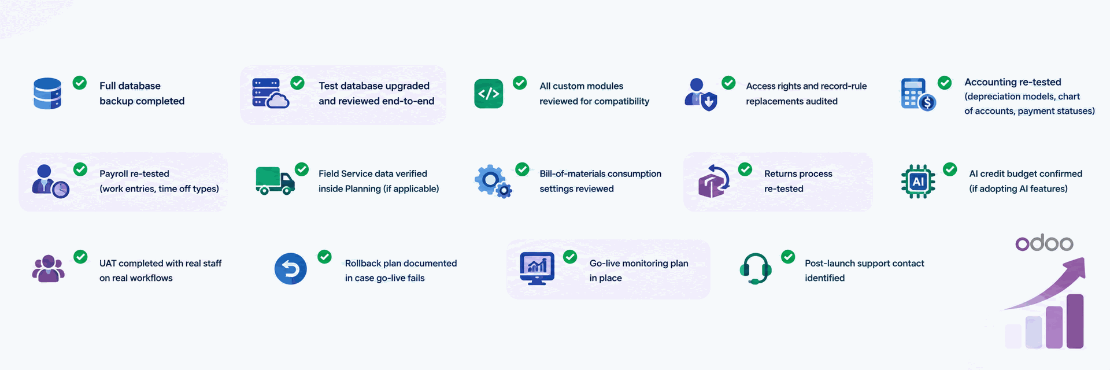
Final Pre-Launch Checklist
A condensed version of everything above save or screenshot this one.
Final Thoughts
An Odoo 20 upgrade isn't risky because the release is flawed it's risky when it's treated as a simple version bump instead of a structural change. Record rules, asset models, work entries, and Field Service all changed shape, and each one touches real daily workflows. The official release notes are worth reading in full alongside this checklist, not instead of it.
The checklist above won't make the process fast, but it will make it predictable. Work through it in order, don't skip the audit steps because they feel administrative, and treat UAT as a real gate, not a formality.
Frequently Asked Questions
This varies by database size, customization depth, and how many modules need review. Plan for multiple testing cycles rather than a single weekend, especially if you use Accounting, Payroll, or Field Service heavily.
Yes, for a small database with minimal customization and no regulated localization needs. For heavy customization or compliance-sensitive setups, a partner reduces the risk of missing something structural.
Back up your full production database before any upgrade attempt. This is standard ERP practice, not specific to Odoo 20, but it's non-negotiable regardless of database size.
Potentially, yes. Structural changes like removed record rules, asset models replaced by depreciation models, and removed work entries can all affect custom code that depended on the old structures.
Not always. Simple databases with no custom code may not need one. If you have custom modules or heavy third-party integrations, developer review is strongly recommended before go-live.