Why Integrate 3CX CRM with Odoo?
Sales and support teams lose valuable time every day manually logging calls, hunting for contact records, and chasing missed call follow-ups across disconnected systems. When your phone system and CRM don't talk to each other, customer interactions fall through the gaps and so do deals.
The Odoo 3CX CRM Connector by Creyox eliminates this friction by creating a direct, automated bridge between your 3CX telephony platform and Odoo's CRM and Contacts modules. Every inbound call, outbound call, live chat, and missed call is automatically captured, attributed to the right contact, and logged in Odoo's chatter without any manual effort from your team.
The result is a single, centralized communication history for every customer: who called, when, for how long, and what happened next. Whether you run a single business or a multi-company Odoo setup, this connector gives every team member complete visibility into customer interactions directly inside Odoo.
Overview: What Does the 3CX Odoo Connector Do?
The 3CX CRM Odoo Connector is a purpose-built integration module that connects 3CX's telephony and live chat capabilities directly to Odoo's contact and CRM infrastructure. When a call comes in through 3CX, the connector checks whether the caller's number matches an existing Odoo contact. If no match is found, a new contact is automatically created including country code validation to prevent duplicate entries.
Every call is logged in the contact's chatter with full details: call direction (inbound or outbound), caller and recipient information, timestamp, and call duration. For missed calls, the connector automatically schedules a follow-up activity in Odoo, ensuring no customer inquiry is ever dropped.
The module extends the same intelligence to live chat. When a new visitor starts a chat through 3CX, a contact is created in Odoo and the full conversation is logged in their profile. If a live chat visitor escalates to a phone call, they are identified as a "Live Chat Caller" in Odoo, with both the chat and call logged together for complete context.
Hot Features
◆ Intelligent Call Handling.
◆ Integrated Live Chat.
◆ Automatic Activity Scheduling.
◆ User-Friendly Interface.
◆ Centralized Chatter Updates.
◆ Seamless Communication.
◆ Data Synchronization.
◆ Automatic User Generation.
◆ Multi-Company Support.
◆ Automatic Number Recognition with Country Code Matching.
◆ Enhanced Customer Interaction History.
◆ Secure User Authentication and Access Control.
◆ Call Direction Tracking (Inbound/Outbound).
◆ Caller and Recipient Information Logging.
◆ Call Duration Tracking.
Features
◆ Real-Time Response Capture.
◆ Missed Call Follow-Up.
◆ Live chat & Call Functionality.
◆ Call History Logs.
◆ User Profile Creation.
◆ Seamless Multi-Business Compatibility.
◆ User-Friendly Setup and Configuration.
◆ Intelligent Number Recognition.
◆ Authentication and Access Control.
◆ Odoo Call Button Redirects to 3CX.
◆ Chrome Extension for Enhanced Functionality.
◆ Avoid Duplicate Contact Creation via Country Code Validation.
◆ Secured URLs for Email and Phone Links.
◆ Restrict Public Access to Ensure Authenticated User Actions.
Workflow
◆ To Dial Contact Number Automatically from Odoo Call Button.
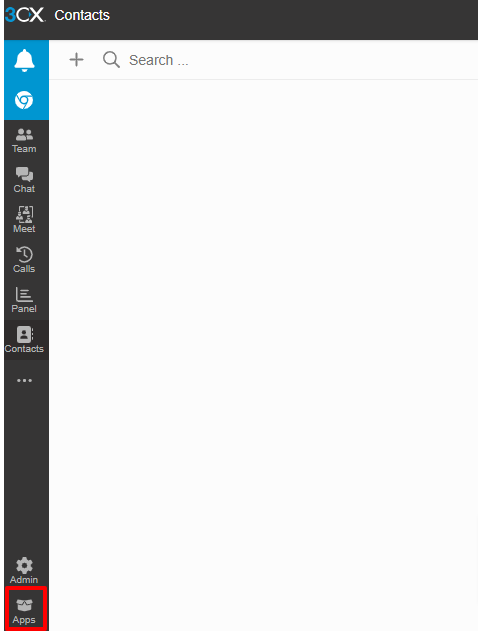
◆ Navigate to Your 3CX CRM Instance >>Apps.
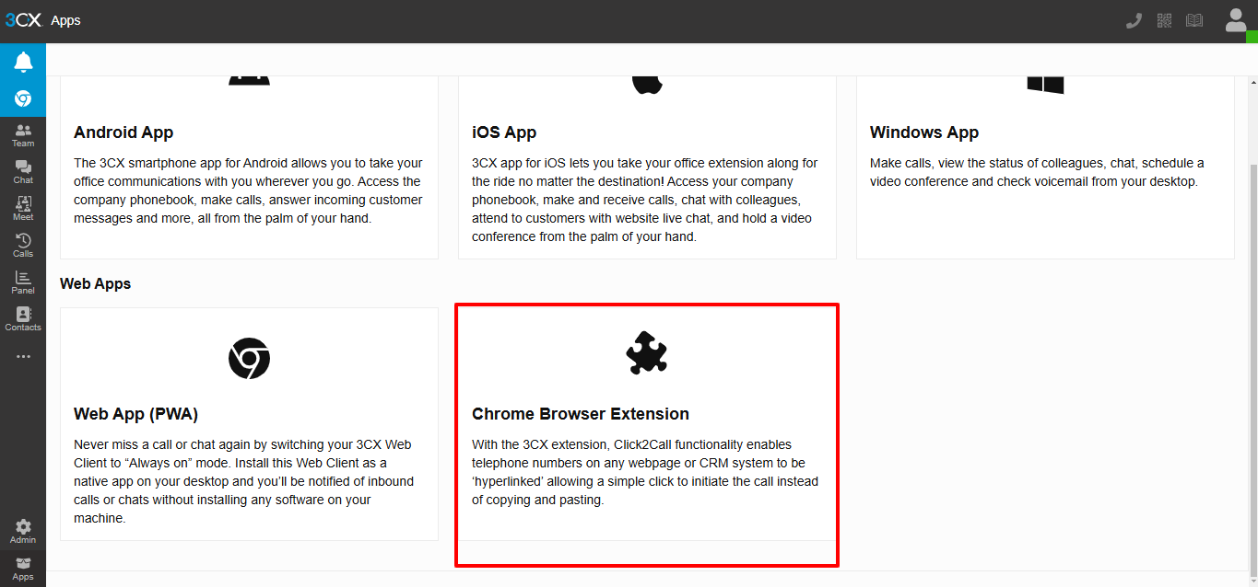
◆ Add Chrome Browser Extension.
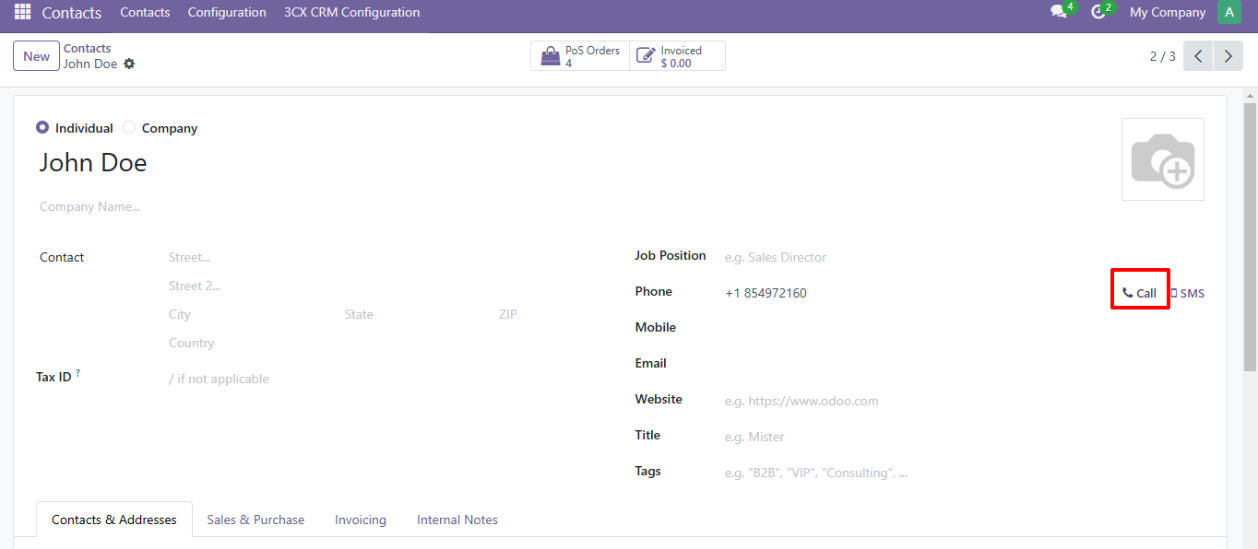
◆ Navigate Odoo >>Contacts click on call button.
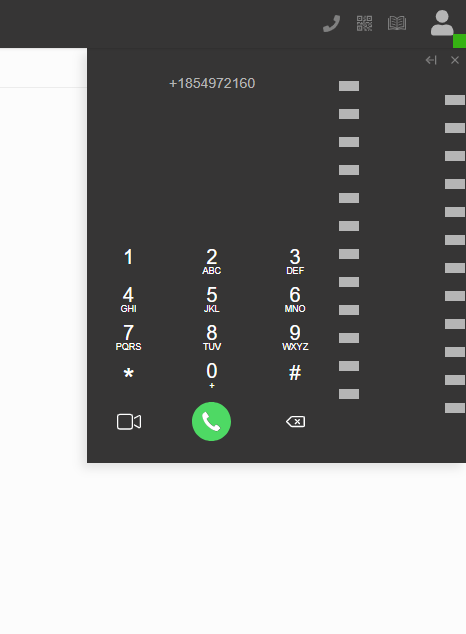
◆ This will Automatically dial the number in 3cx CRM Dial Pad.
◆ Easily Navigate to Contact in Odoo from 3CX CRM from Call Or Messages.
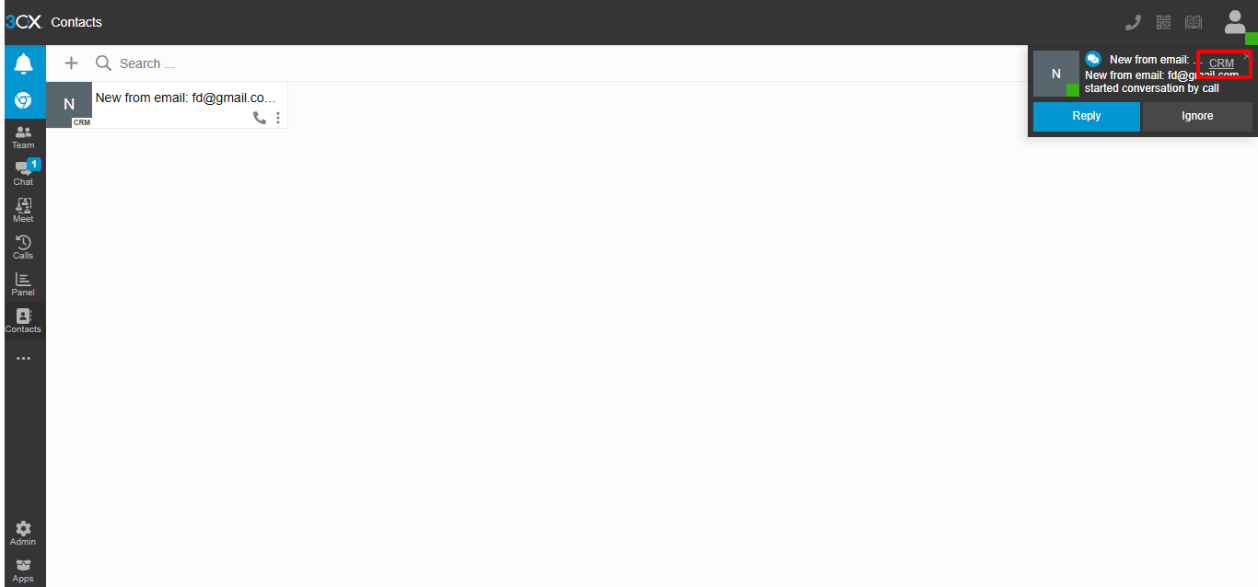
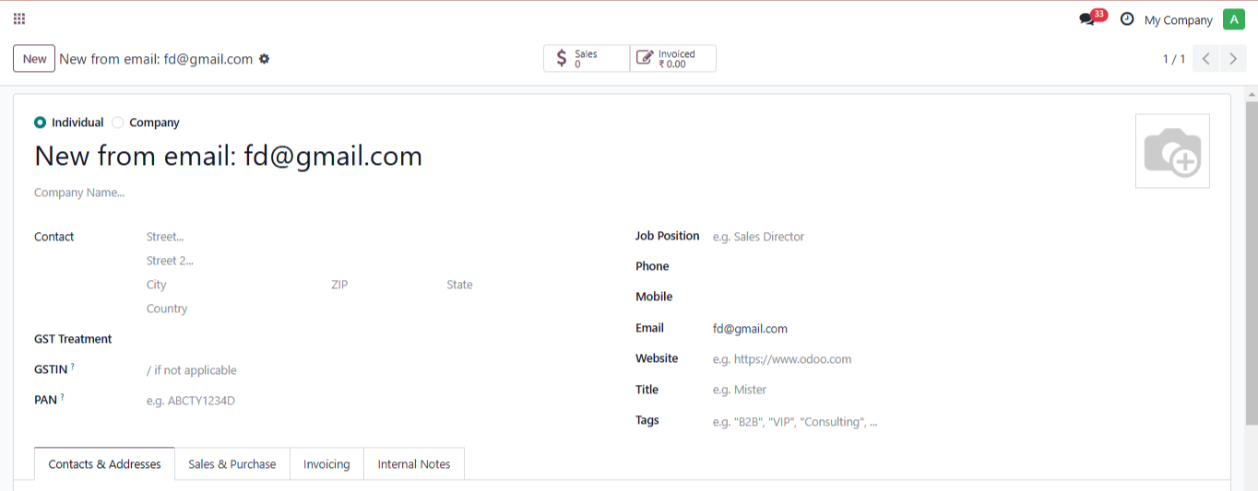
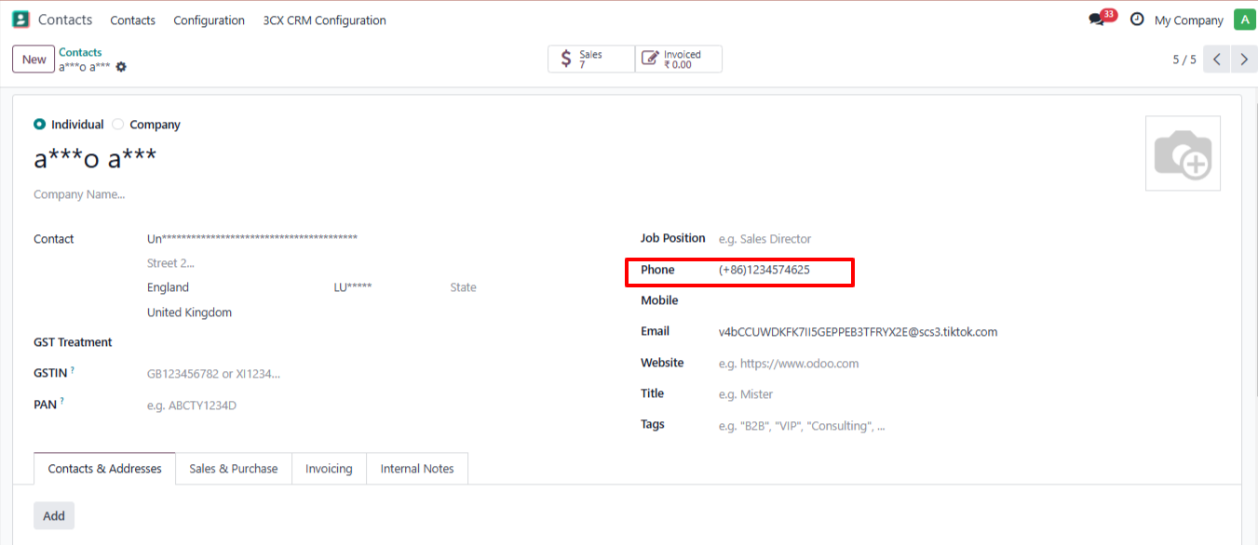
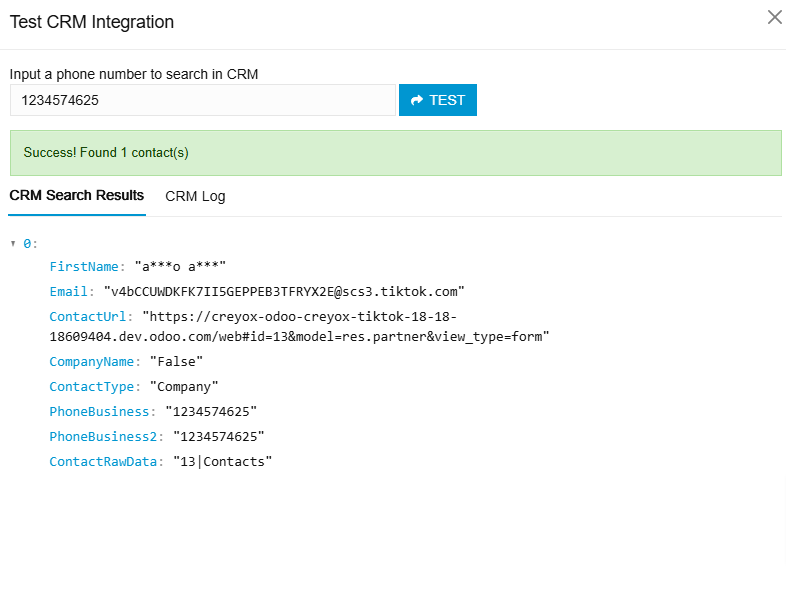
◆ Avoid duplicate contact creation by validating phone numbers with or without country code.
◆ Authentication To Access Odoo.
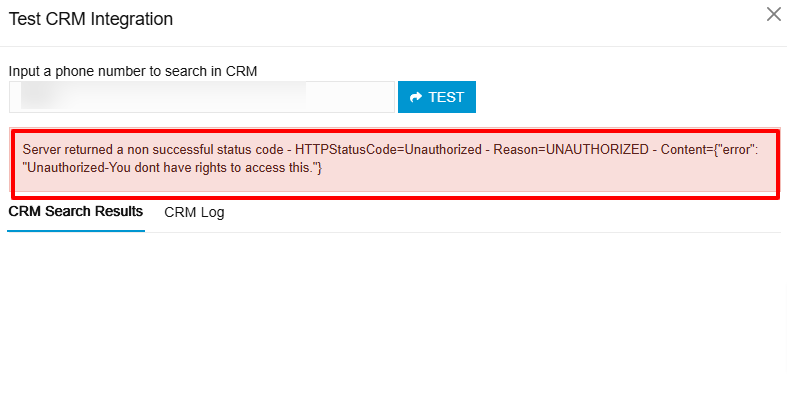
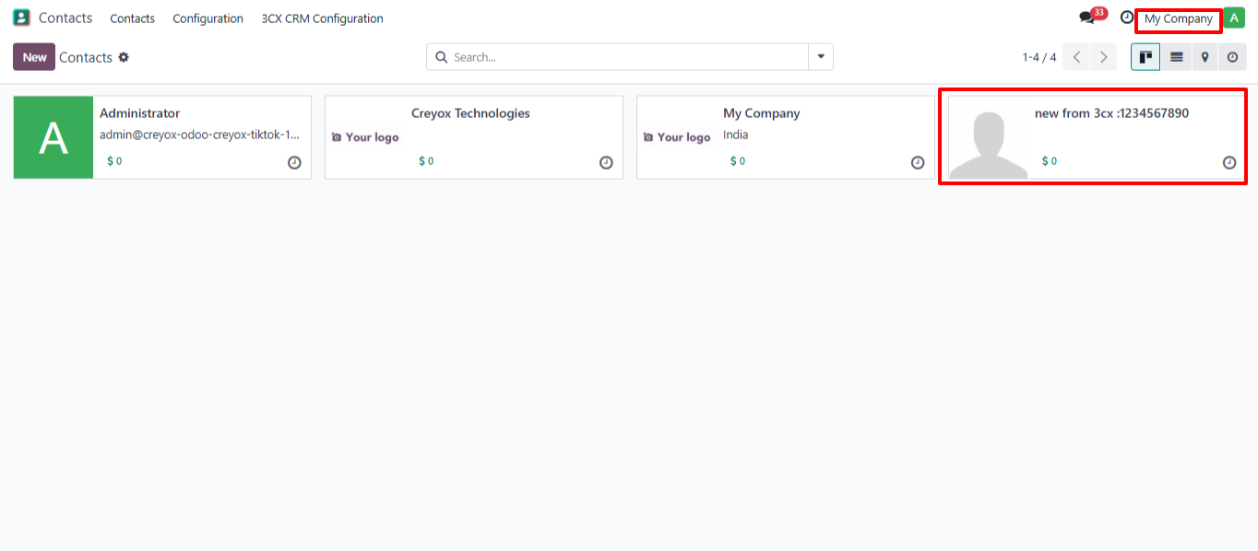
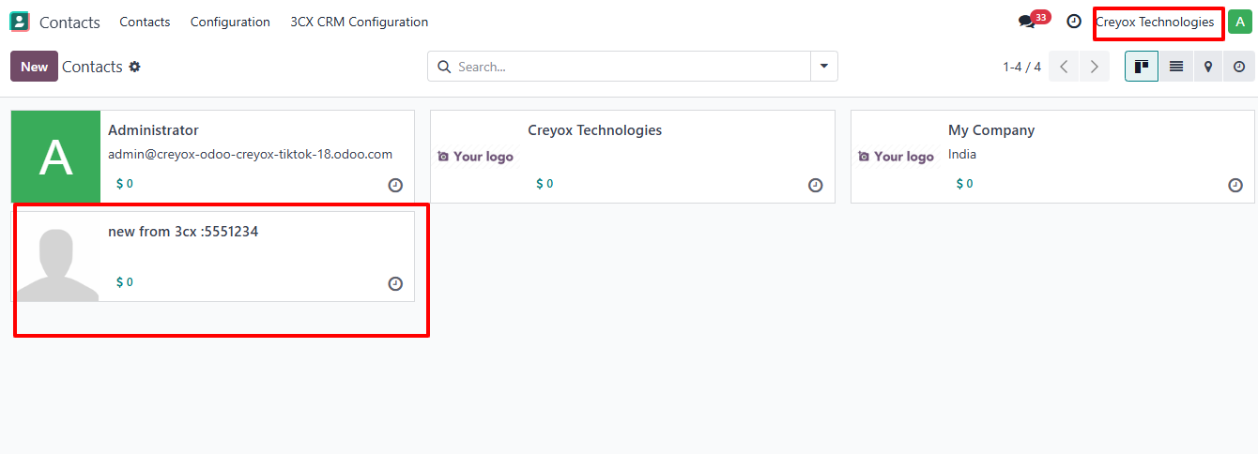
◆ To Manage multi-company contact generate configuration file Company wise.
◆ Navigate to 3CX CRM Integration>> Here add the configuration File of the company in which you want the contacts to be managed.
Setup Workflow
◆ Navigate to Contacts , There you can find menu for 3CX CRM Configuration.
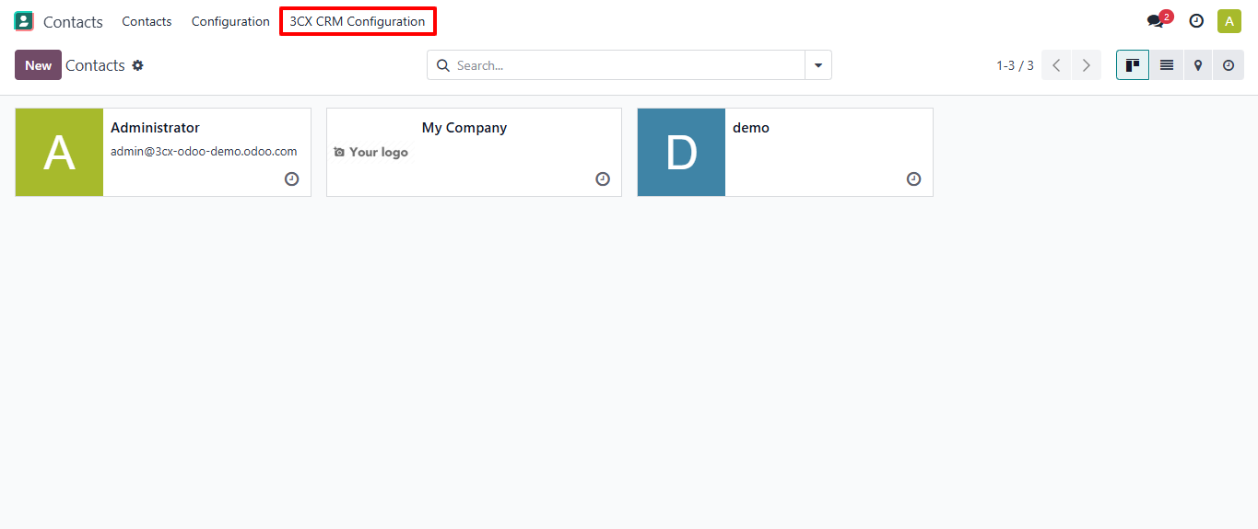
◆ After Clicking that menu You will get one view to generate the Configuration file.
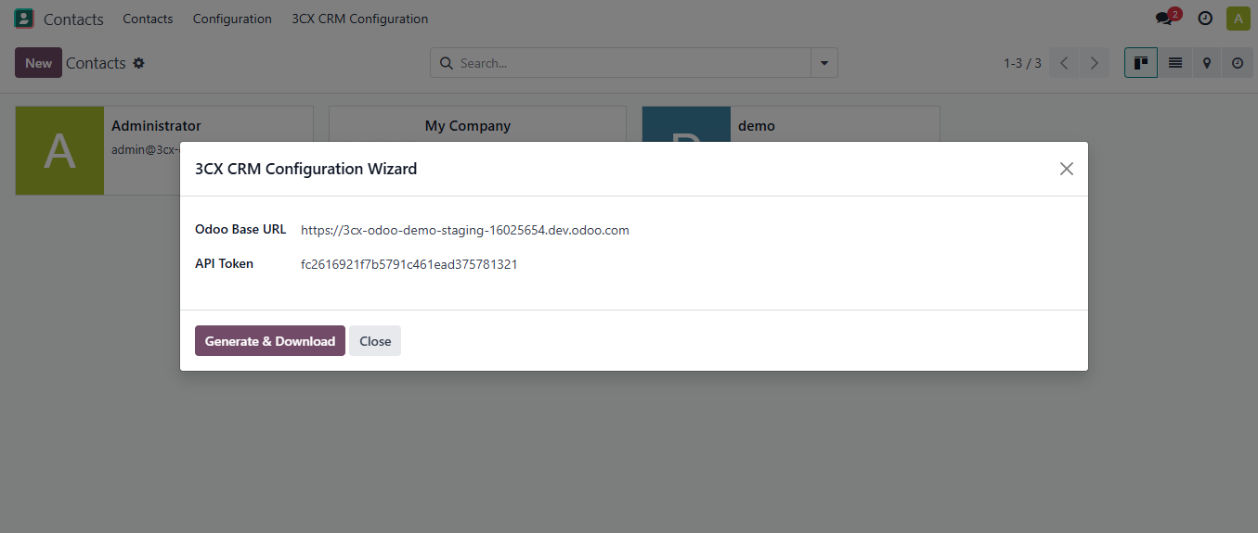
◆ Click the button Generate & Download to Download the Generated Configuration File.
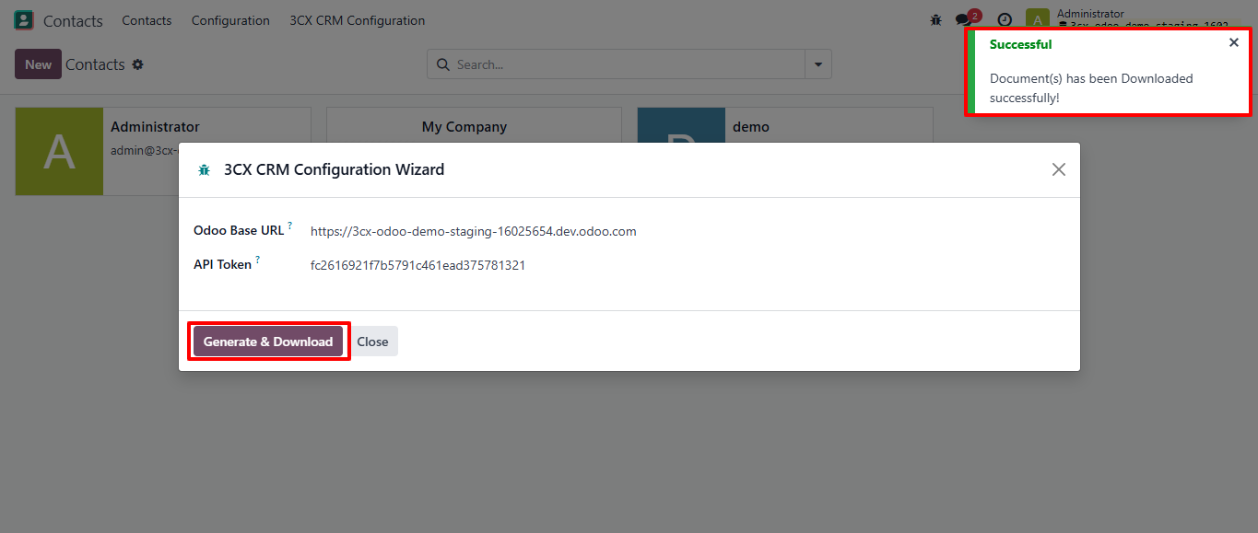
◆ Login To Your 3CX CRM Instance.
◆ Navigate To Admin >> Integration >> CRM .
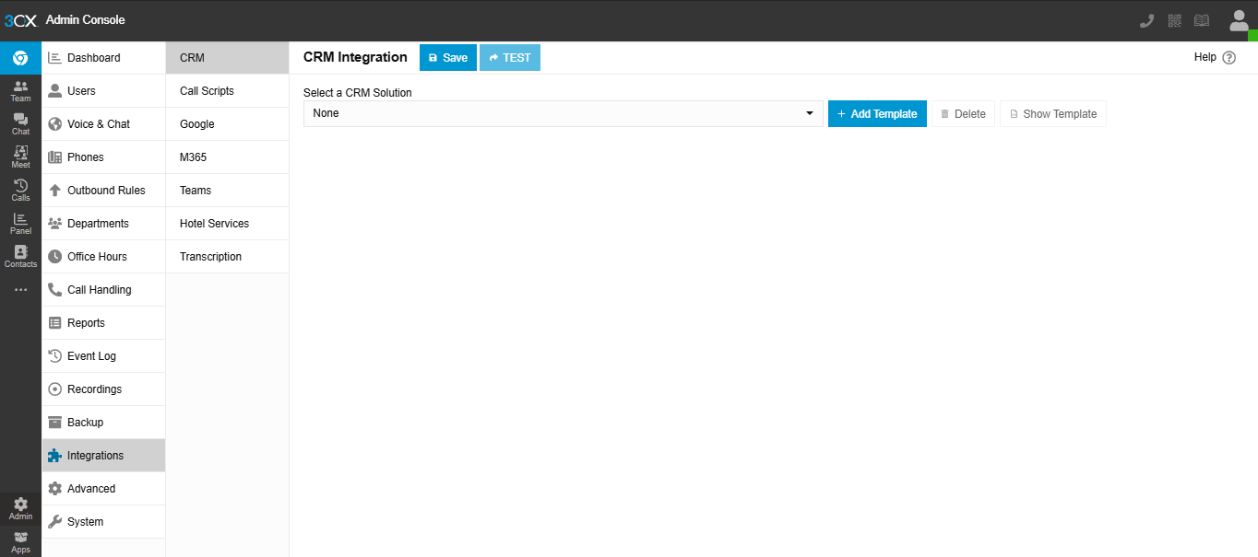
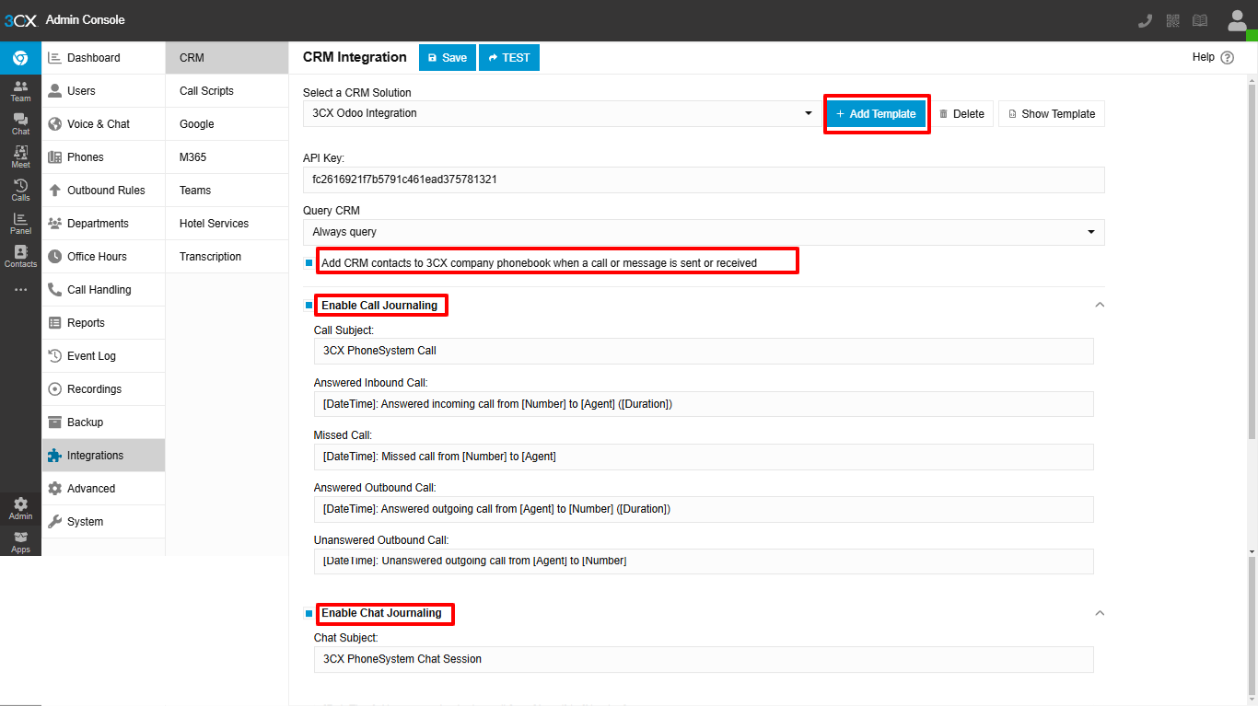
◆ Click on Button Add Template to Add the Downloaded Configuration File.
◆ Select the checkboxes as shown below to enable Chat and Call Logging.
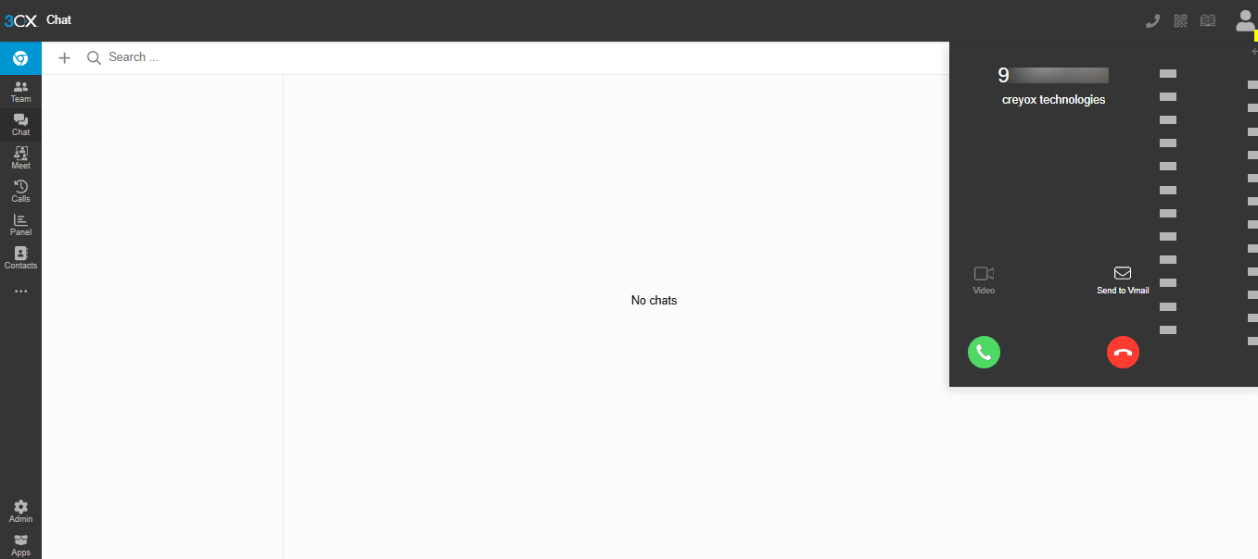
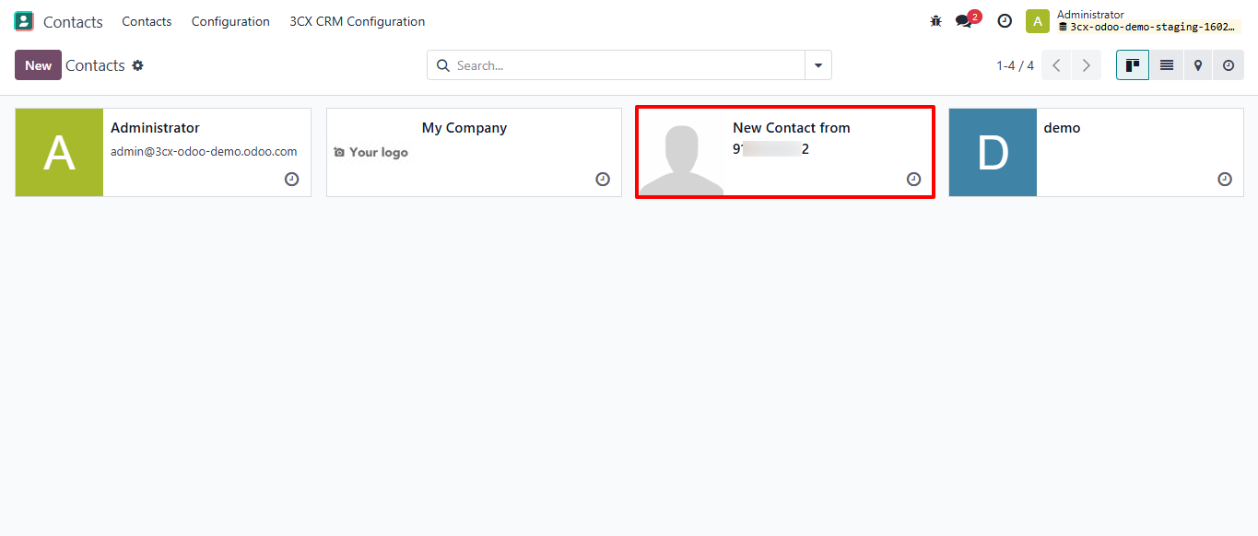
◆ When you answer an incoming call in 3CX CRM, the contact will be automatically created in Odoo.
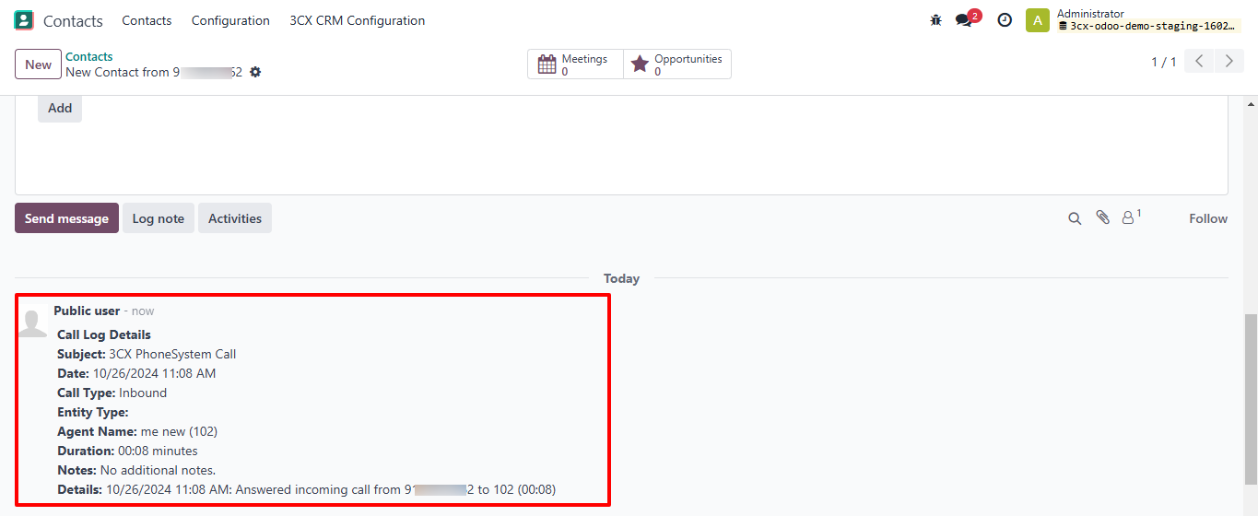
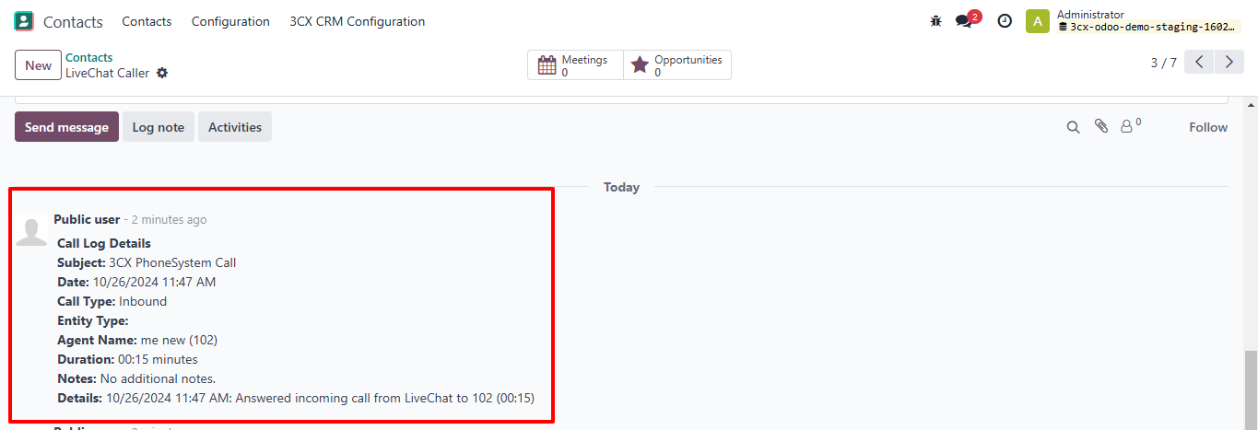
◆ Verify that call details, including call direction , caller/recipient information , and call duration , are logged in the chatter of the respective contact.
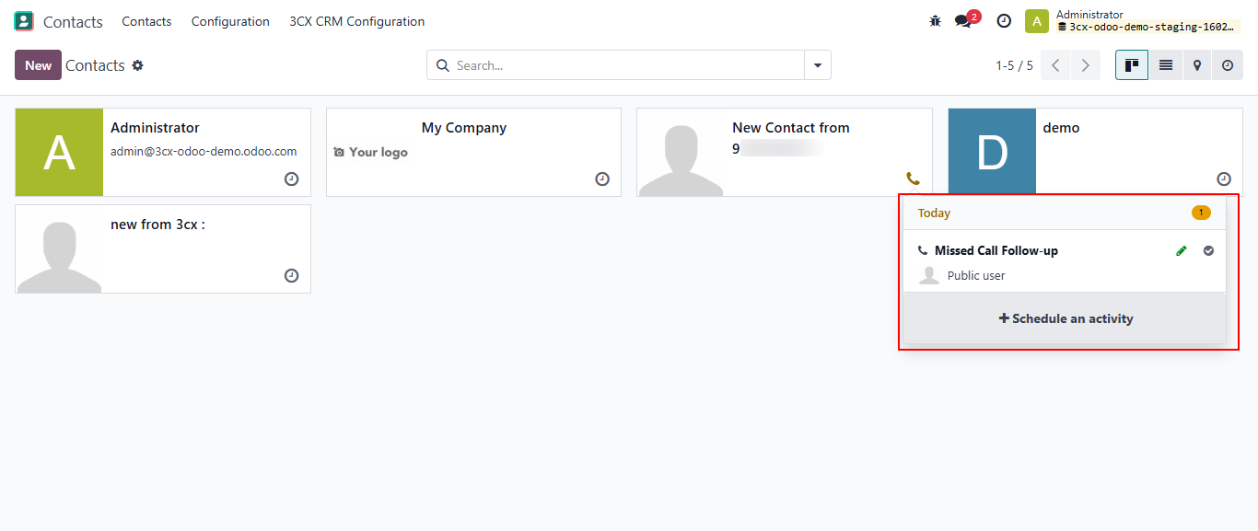
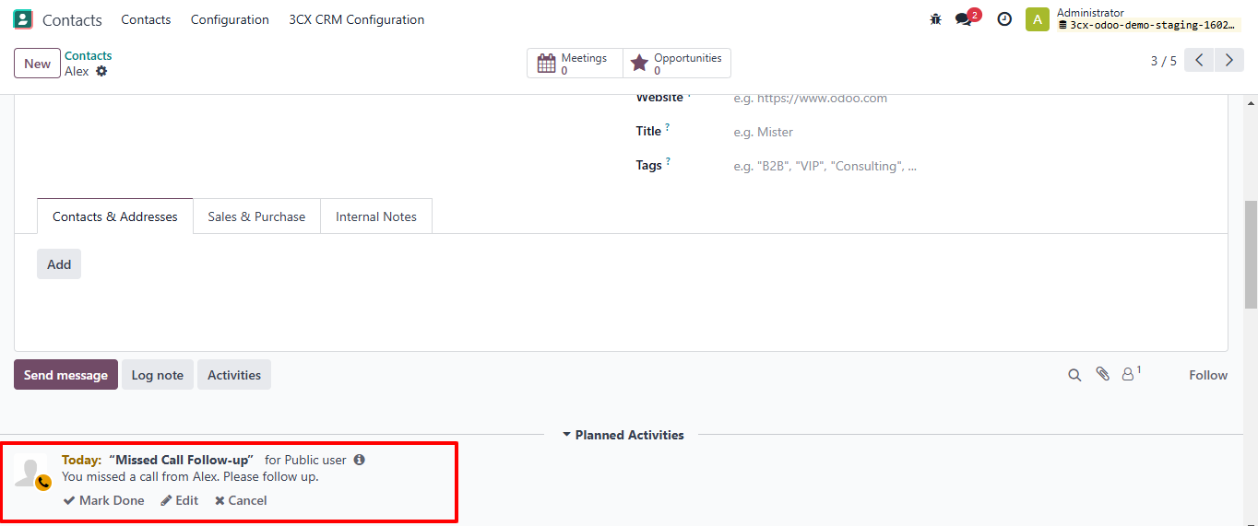
◆ If you miss the incoming call, a new activity will be created under the contact in Odoo for follow-up.
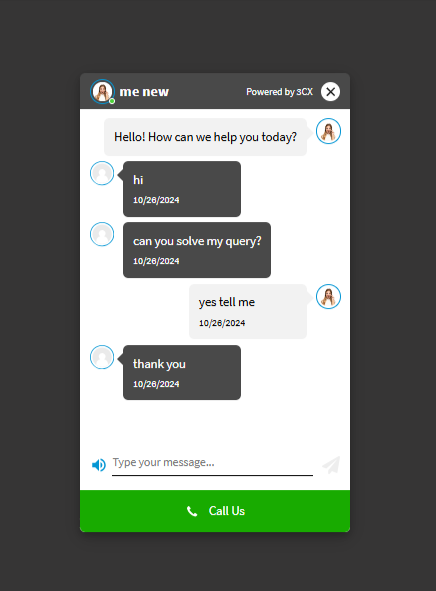
◆ If a message is received from the live chat and the person is not in the contacts, a new contact will be created in Odoo.
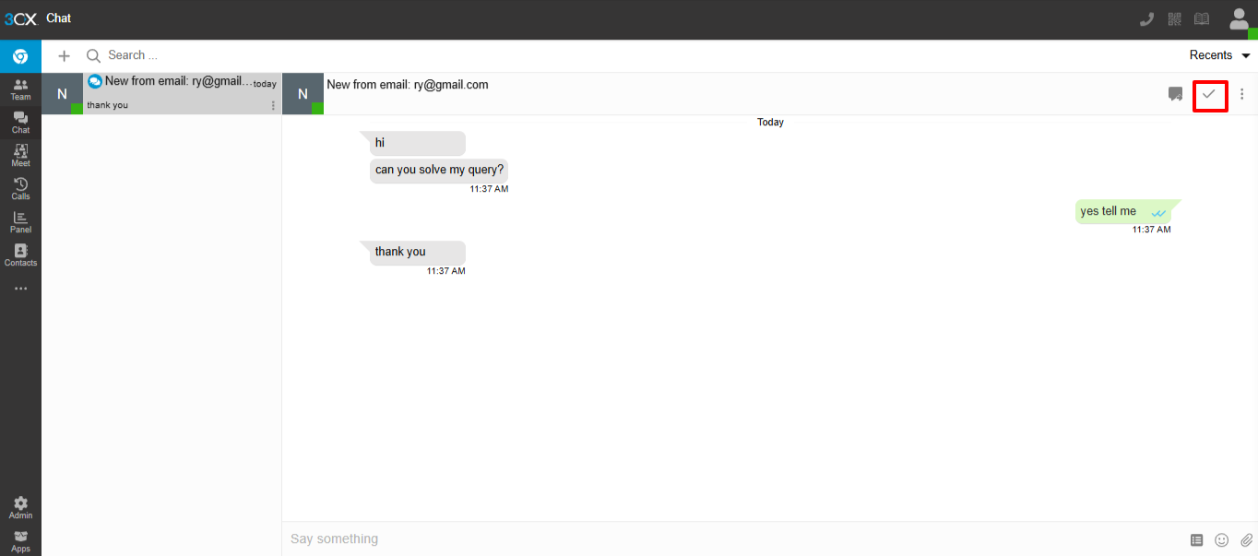
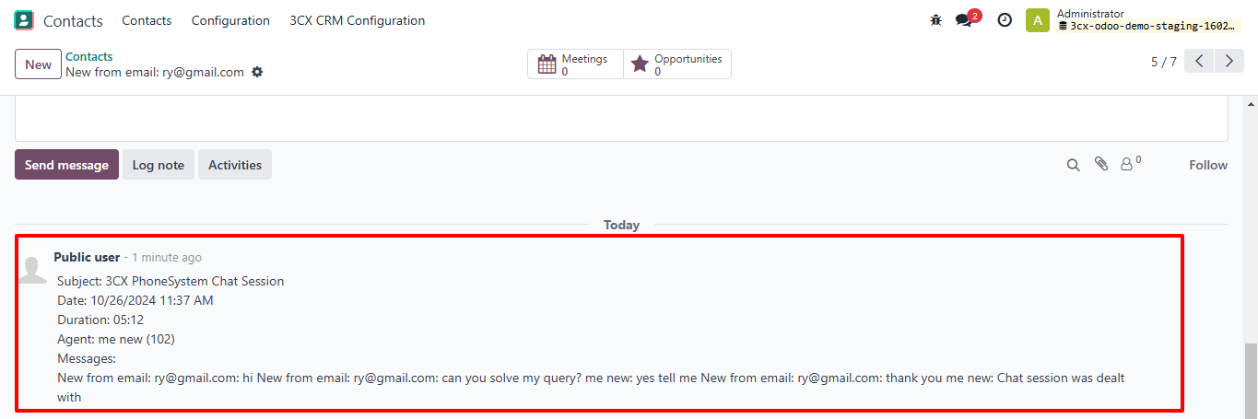
◆ Once the chat is completed, it will be logged in the chatter of the contact as shown below.
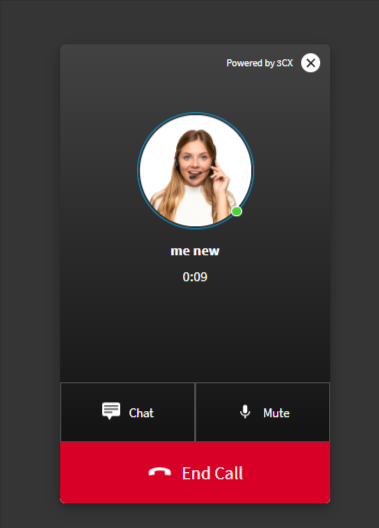
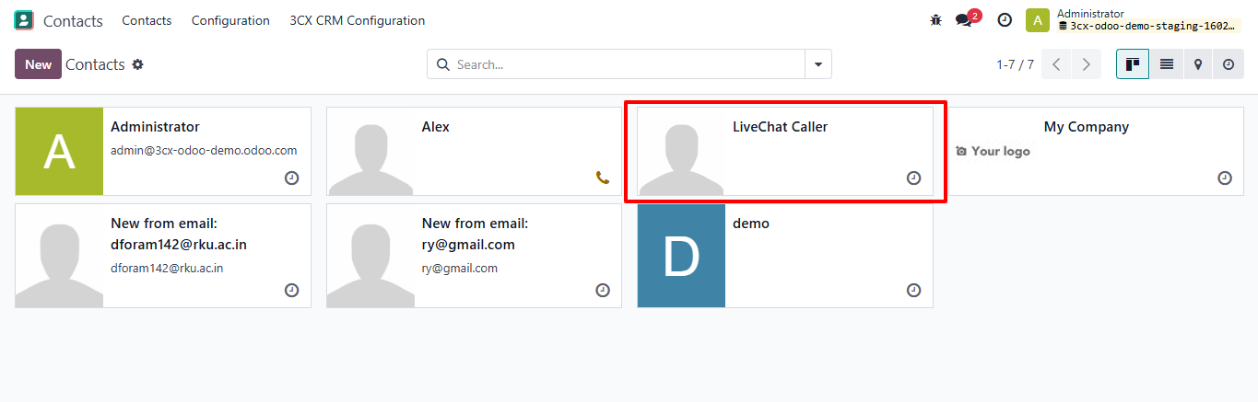
◆ If the incoming call originates from a live chat, a contact will be created in Odoo as a "Live Chat Caller," and the call details will be displayed in the chatter of that contact.
Frequently Asked Questions
Yes. On setups where Helpdesk is installed alongside CRM, calls can be linked directly to Helpdesk tickets, giving support teams the same automatic logging and context that sales teams get on leads and contacts.
Yes. The connector supports multi-company setups. Each company generates its own configuration file, so contacts, calls, and chats stay correctly separated per company.
The Chrome browser extension is used specifically to enable click-to-call — dialing a number directly from an Odoo contact form through 3CX. Call logging, contact creation, and missed-call follow-ups work independently of the extension.
The connector matches the incoming number against existing contacts — including validation with or without country code so it logs the call against the existing record instead of creating a duplicate.
No. Once the configuration file is generated in Odoo and uploaded to 3CX, calls, chats, and missed-call follow-ups are captured automatically without further manual steps.
Yes, with one distinction: if a live chat visitor is not an existing contact, a new contact is created automatically, and if that visitor later escalates to a call, they're tagged as a "Live Chat Caller" so both interactions stay linked together in the same record.