Why Add hCaptcha to Your Odoo Website? Stop Spam
Why Add hCaptcha to Your Odoo Website?
If you run an Odoo-based eCommerce store, corporate site, or internal portal, you’ve likely dealt with fake account creations, spam form submissions, or brute‑force login attempts. Manually reviewing each signup or cleaning up bot‑generated contact inquiries wastes hours and opens security gaps. The Odoo hCaptcha Integration by Creyox solves this at the source. It adds hCaptcha verification to your most vulnerable forms login, signup, password reset, product details, cart summary, and contact pages without slowing down real users. One API‑powered connection, and your Odoo forms instantly gain bot‑proof protection.
Overview
The Creyox Odoo hCaptcha module plugs directly into your existing website forms. Instead of generic CAPTCHA that hurts user experience, you get hCaptcha privacy‑focused, user‑friendly, and highly effective against automated attacks. From a single configuration page inside Odoo Website settings, you enter your hCaptcha site and secret keys, then choose exactly which pages need protection: login, signup, reset password, product pages, cart summary, or contact forms. A clear note reminds you which pages are enabled by default. For extra security, the module hides credential characters and includes a boolean to toggle visibility per page. Once active, the hCaptcha widget appears on selected forms, and only after successful verification does Odoo process the submission stopping bots cold while letting legitimate users pass seamlessly. No coding, no design changes, just robust security with a few clicks.
Hot Features
◆ Separate hCaptcha Credential Page
◆ Easy to apply hCaptcha to different pages
◆ Note for default selected page
◆ Hidden character for Credential
◆ Boolean to control hCaptcha block visibility
◆ Extra security level
Features
◆ User can configure the Credential of hCaptcha from the hCaptcha Configuration page of the website.
◆ Easily check the boolean for the page where hCaptcha needs to be shown.
◆ Note that gives a message regarding the default selected pages.
◆ Hidden character for the secret key and site key.
Work Flow
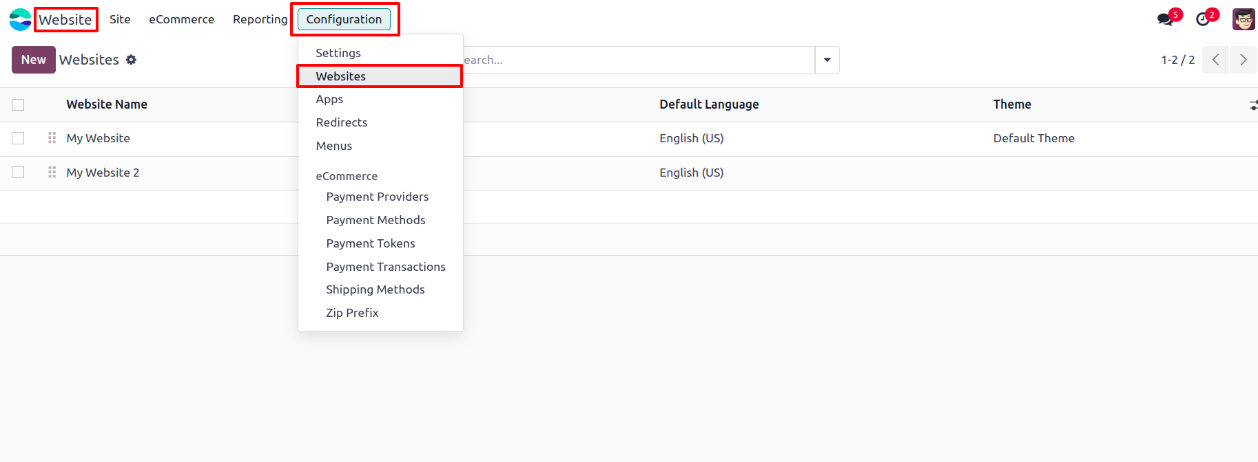
◆ User need to navigate to Website >> Configuration >> Websites and select website.
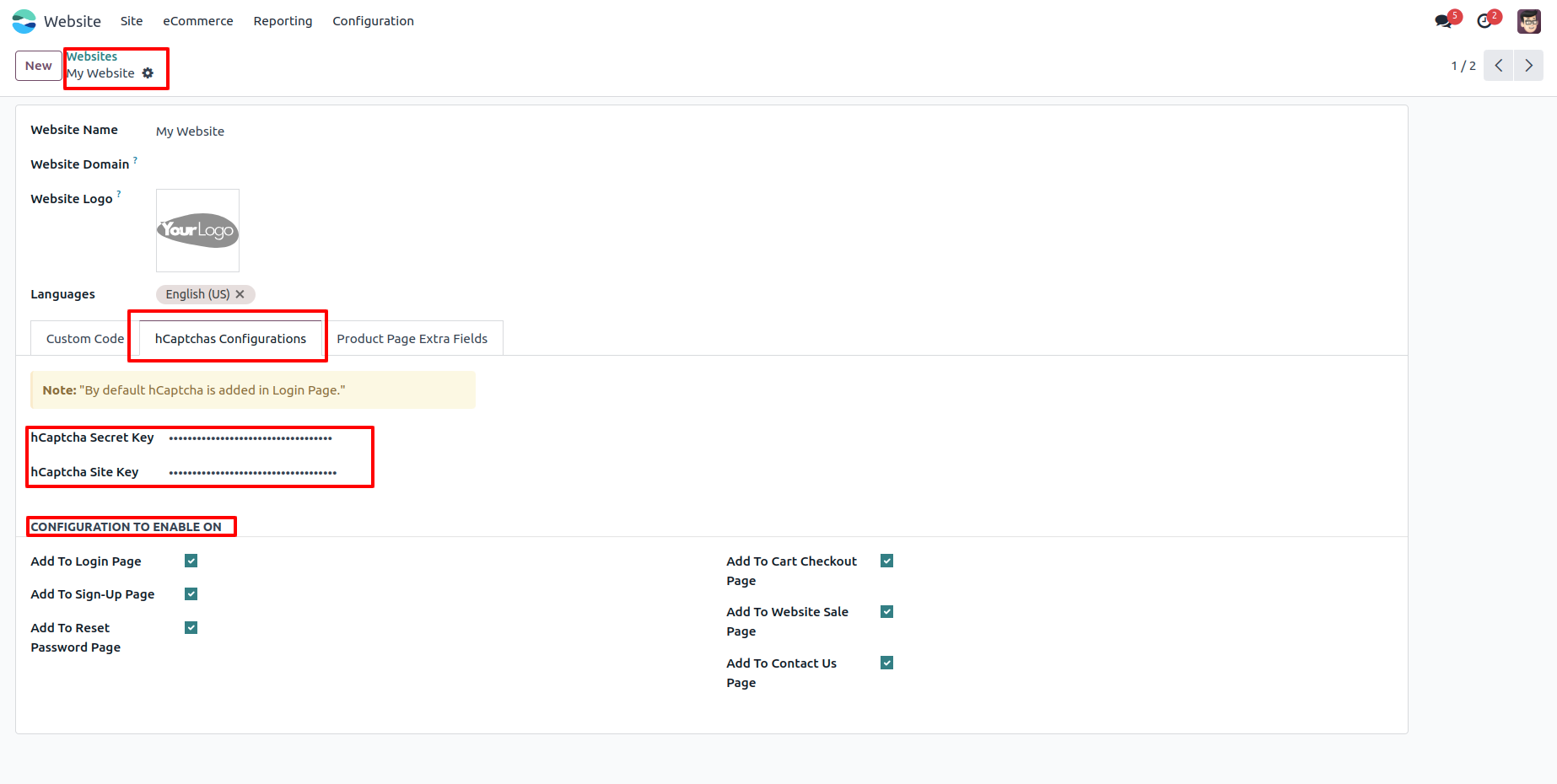
◆ Further user need to open a website record and there user will a page hCaptcha Configurations.
◆ Here in these page user will see Note message that says default Login page has hCaptcha enabled.
◆ Also, there are 2 fields for secret key & site key and some boolean options in which page hCaptcha need to be enabled.
◆ Here is a total flow how the hCaptcha is shown in pages & how it works.