How to Connect Odoo with Power BI Desktop: Real-Time Data Sync, Dashboards & Advanced Analytics
Can Power BI connect to Odoo?
Odoo does not offer built-in support for advanced data visualization or direct Power BI integration. The Power BI Connector for Odoo fills this gap by allowing users to connect Odoo directly to Power BI Desktop, enabling seamless, secure, and automated data synchronization for real-time analytics and interactive reporting.
With this connector, businesses can leverage Power BI’s powerful visualization tools to build dynamic dashboards, KPI trackers, and detailed analytical reports based on live Odoo data. By automating data transfers, the integration ensures real-time updates, enhances data accuracy, and eliminates manual exports or repetitive tasks.
This end-to-end Odoo Power BI integration helps organizations uncover key insights, monitor performance metrics, and make smarter, data-driven decisions with ease.
Overview
Supercharge your business reporting and analytics by seamlessly connecting Odoo with Power BI Desktop using this advanced Odoo Power BI Connector. Instantly sync real-time Odoo data—including Sales, Accounting, Inventory, CRM, HR, and Project records—directly into Power BI for dynamic dashboards, interactive reports, and powerful business intelligence insights. This connector ensures fast, secure, and fully automated Odoo data extraction to Power BI without any manual export or technical complexity.
Designed for both Odoo Community and Odoo Enterprise users, this solution delivers a smooth, reliable, and high-performance Odoo to Power BI Integration experience. Create custom dashboards, monitor KPIs, track multi-department performance, and analyze business metrics with ease. It’s the perfect solution for organizations looking for a Power BI Desktop Connector for Odoo, an Odoo Power BI Dashboard solution, or a scalable Odoo Analytics setup.
Whether you need real-time Odoo data sync, automated data refresh, or advanced analytics, this module offers complete end-to-end Odoo Power BI integration to improve decision-making, enhance reporting accuracy, and boost overall productivity for data-driven teams.
Hot Features
◆ Real-Time Data Synchronization.
◆ Easy-to-Configure Settings.
◆ Dynamic Data Mapping.
◆ Automated Scheduled Refresh.
◆ Error Tracking.
◆ Powerful Analytics.
◆ Search Model to Select Data.
◆ Seamlessly share reports to Power BI Service.
◆ Improved Efficiency.
◆ Advanced Error Tracking.
◆ Gateway Support for On-Premise Data Access.
◆ Seamless Odoo-Power BI Connectivity.
◆ Data Import Using Queries. 🔥
Features
◆ Effortless Data Transfer.
◆ Automatic Data Mapping.
◆ Continuous Synchronization.
◆ Real-Time Response Capture.
◆ Troubleshooting and Support.
◆ User-Friendly Setup and Configuration.
◆ Multi-Model Data Sync.
◆ Comprehensive Log Tracking.
◆ Robust Security & Compliance.
◆ Query-Based Data Filtering. 🔥
◆ Comprehensive Sync History Tracking.
◆Easily publish reports to Power BI Service.
Work Flow
◆ Navigate to Power Bi Configuration app from the main menu.
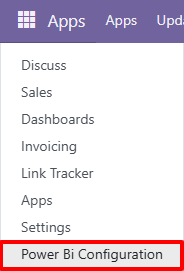
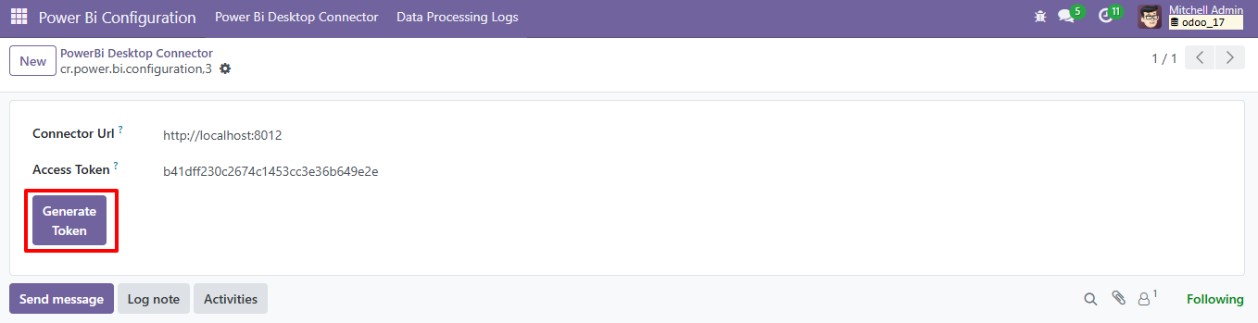
◆ Further user need to navigate to Power Bi Connector and create new record using New.

◆ Click on button Generate Token to generate Authentication Token for PowerBI.
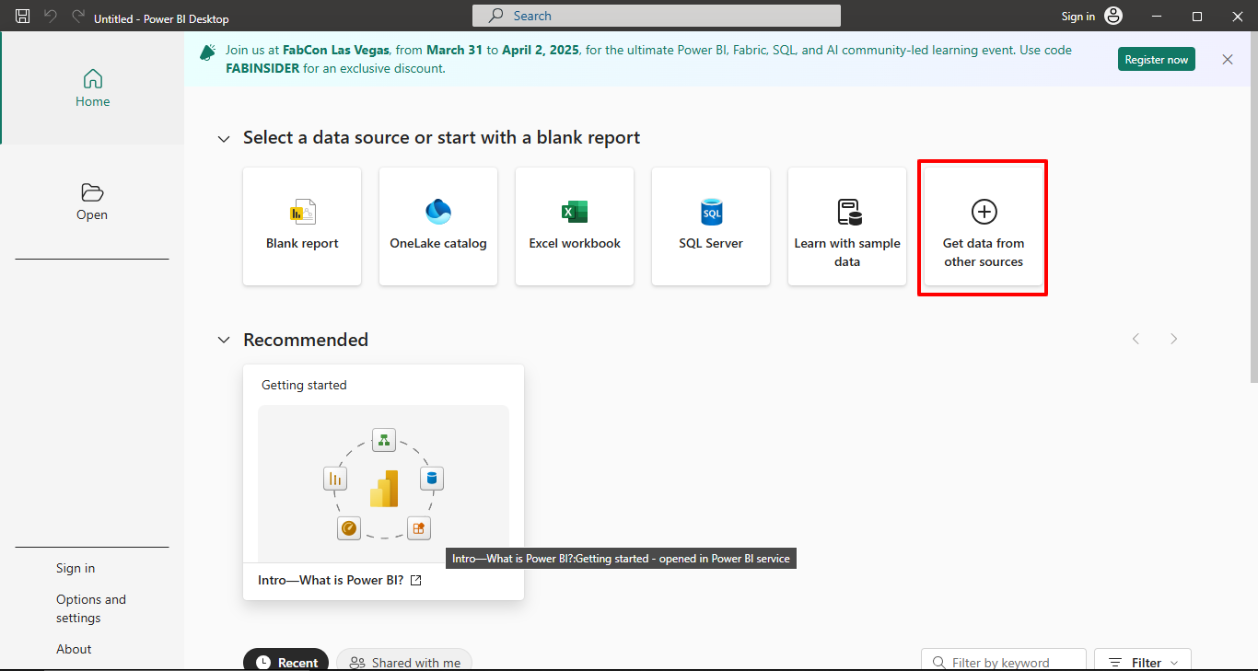
◆ Later user need to open PowerBi Desktop >> Get Data From Other Sources.
◆ Search Odoo Connector By Creyox Technologies and later click on Button Connect.
-
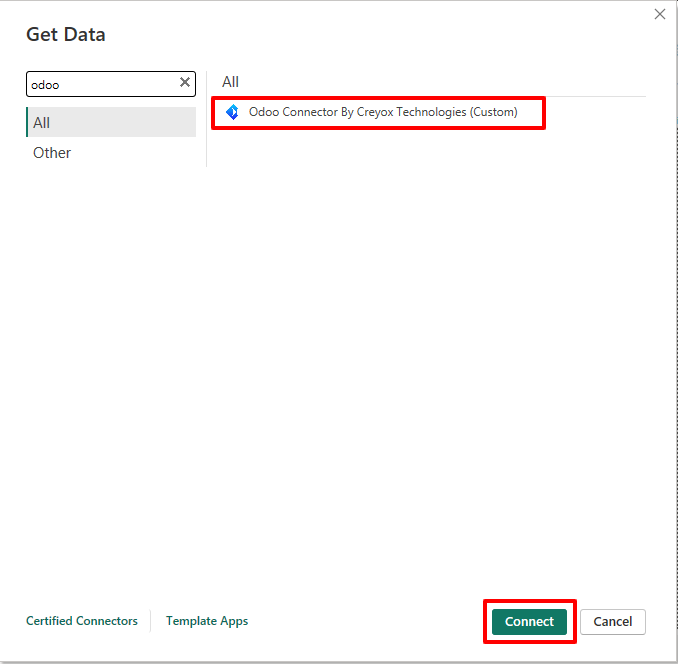
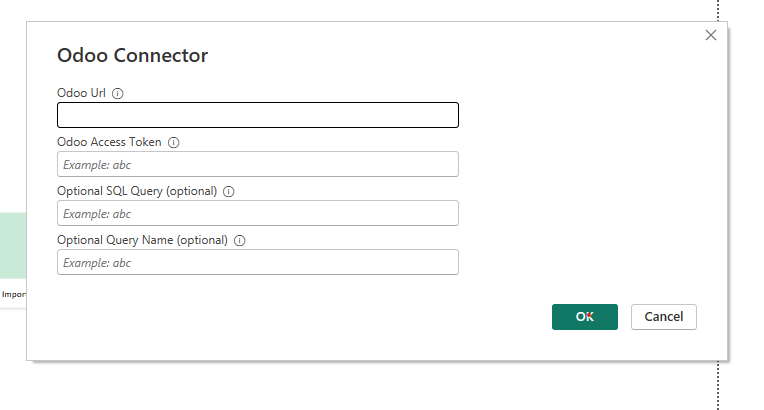
◆ Later add the URL and Authorization Token generated from Odoo.
-
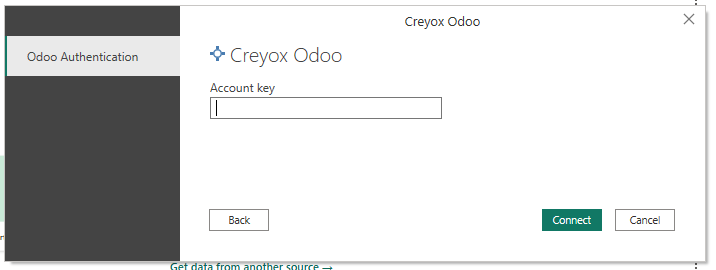
◆ Later user need to add the Authorization Token and click on Connect.
-
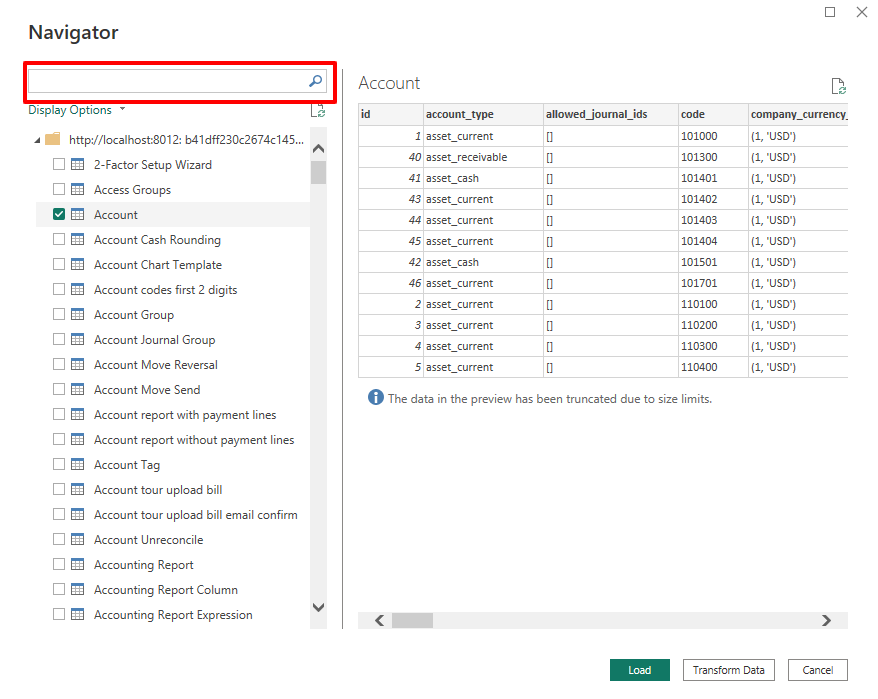
◆ Select The table of which you want to fetch the data.
-
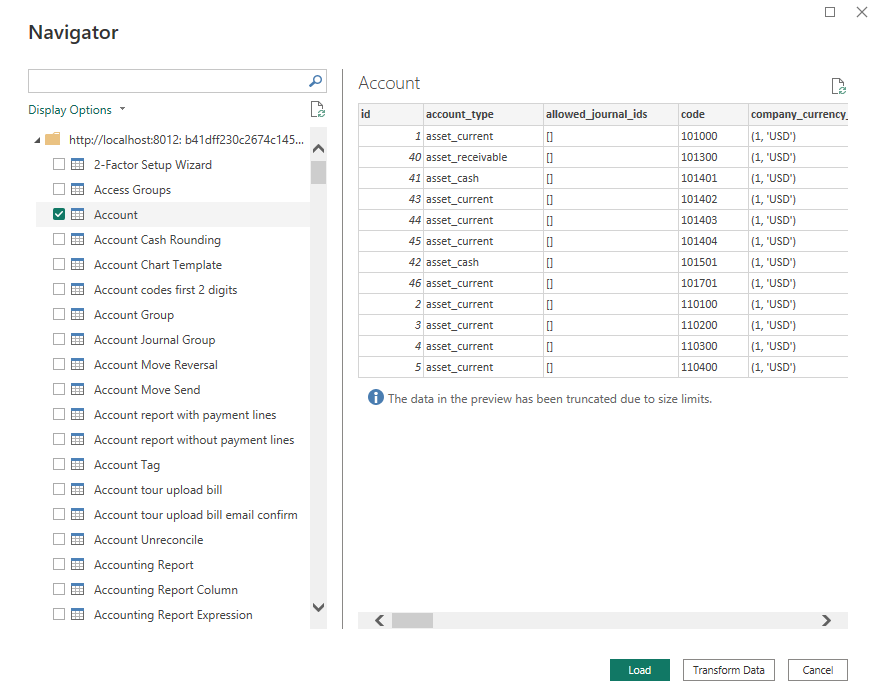
◆ Quickly find the tables you need using the search bar and then click on button Load.
-
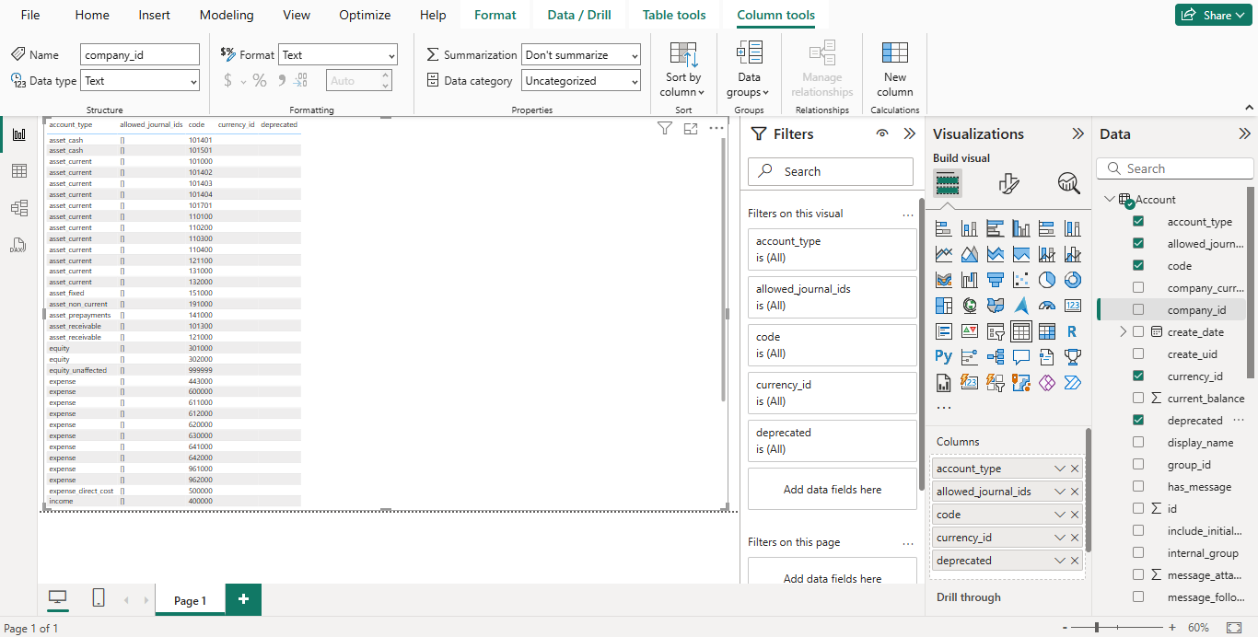
◆ The Imported Data Can Be found in Power Bi Sheet.
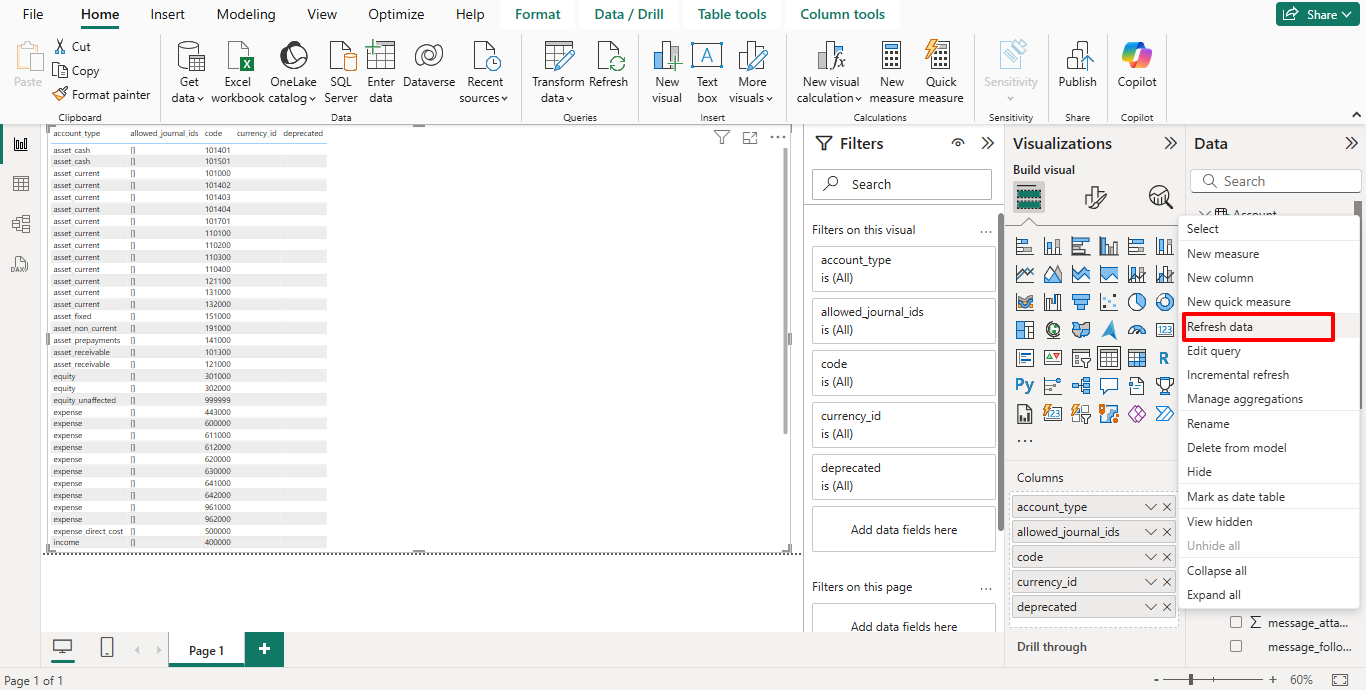
◆ Click On Refresh Data to Refresh Data of Table.
◆ Click on Button Publish to Publish Report in Power Bi Service.
◆ Navigate to Report in Power Bi Service.

◆ Click on View Semantic Model.
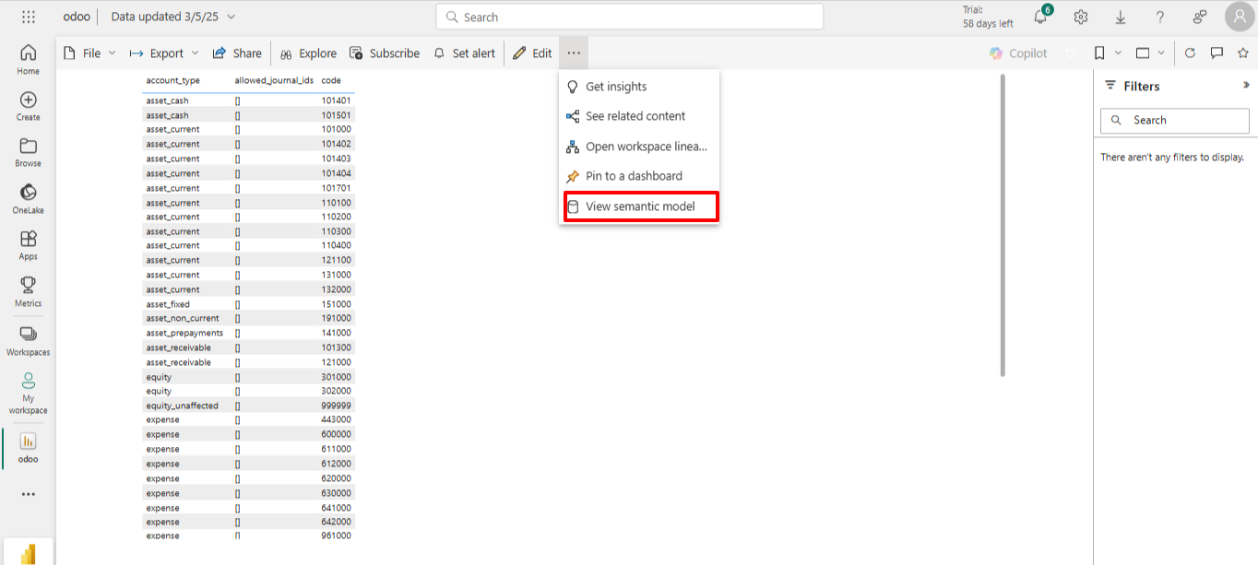
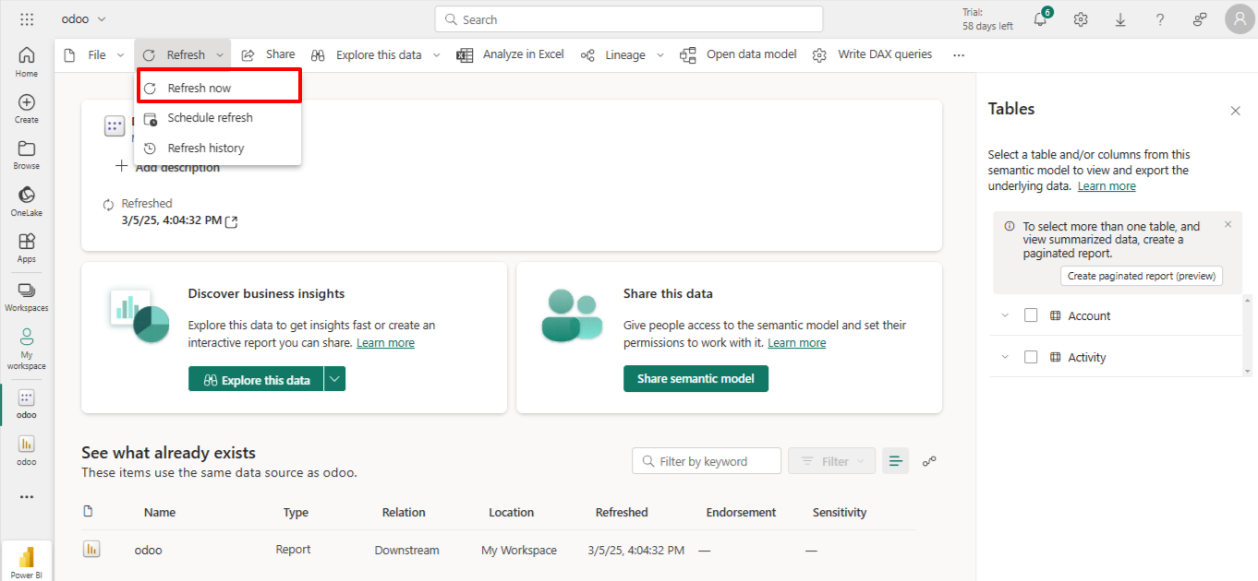
◆ Click on Refresh to Refresh Data.
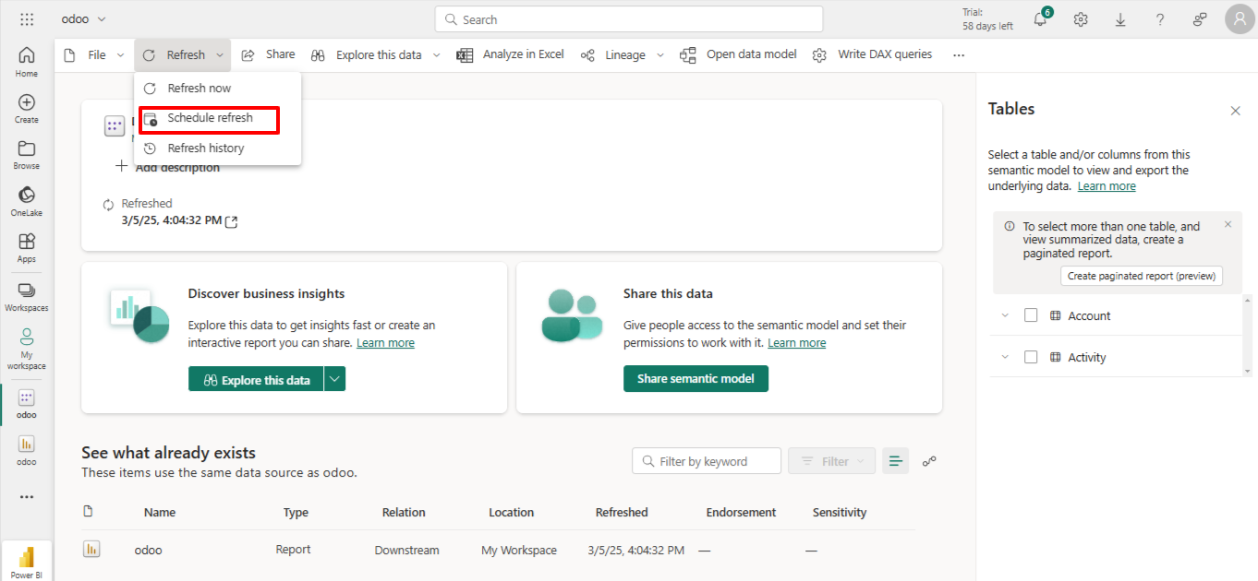
◆ Navigate to Refresh >> Schedule Refresh.
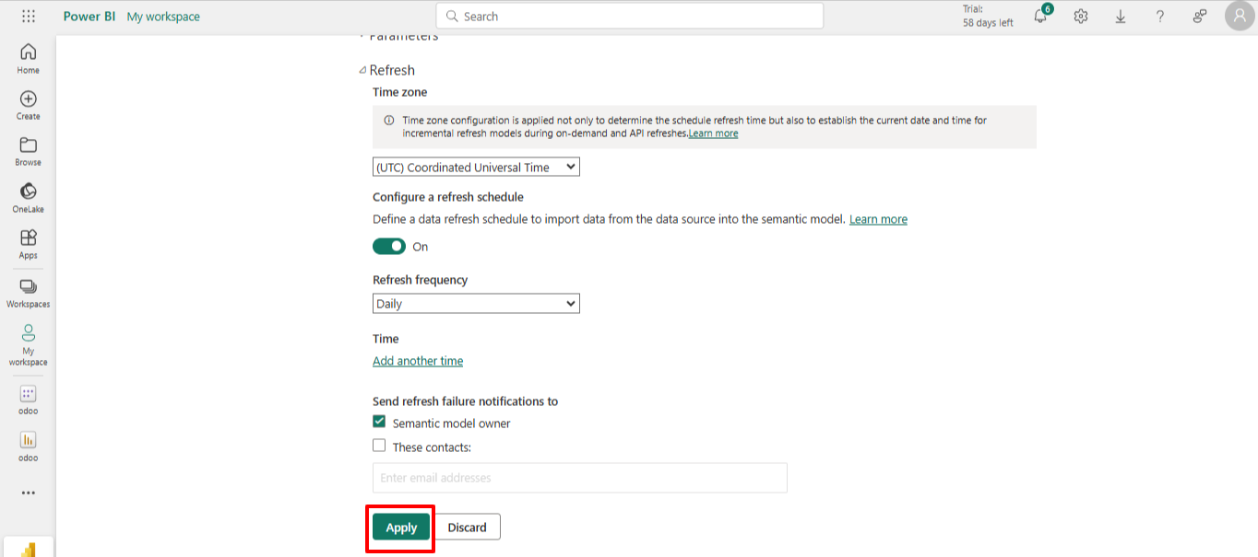
◆ Configure Schedule Refresh and then click on Load or Apply.
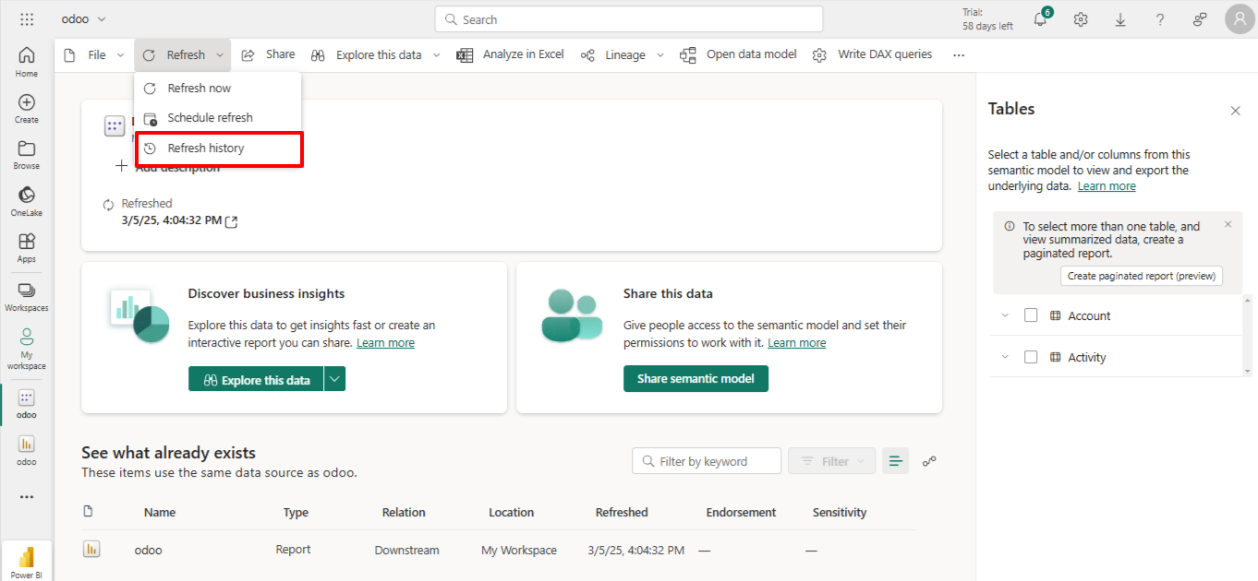
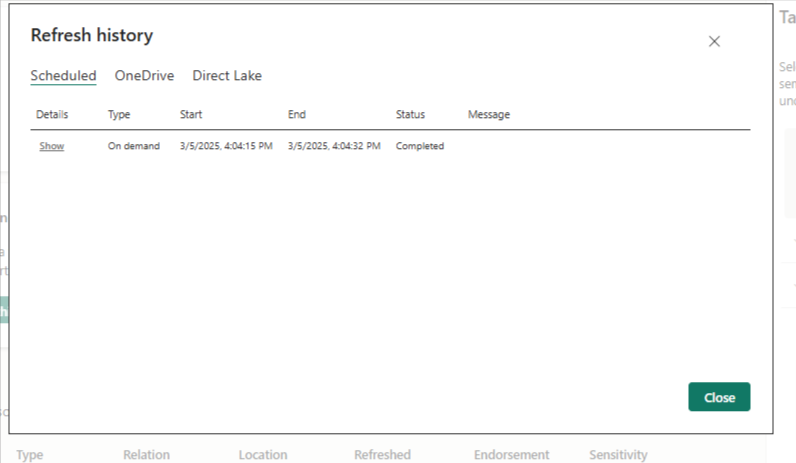
◆ Navigate to >> Refresh History .
◆ Here You can See Refresh History
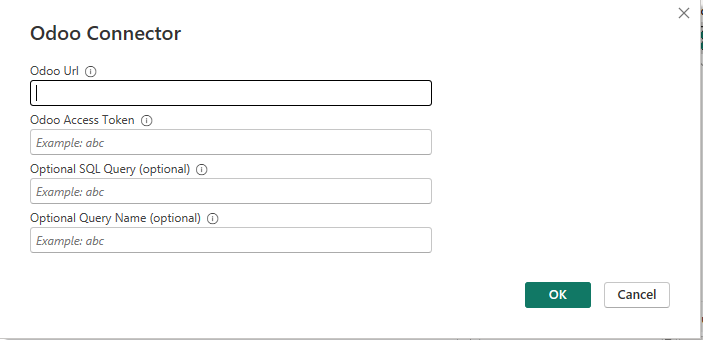
◆ Navigate to >> Power Bi Desktop>> Odoo Connector By Creyox Technologies.
◆ To Fetch data Using Sql Query Write Query .
◆ Click On Button Ok.
◆ The Imported Data Can Be found in Power Bi Sheet.
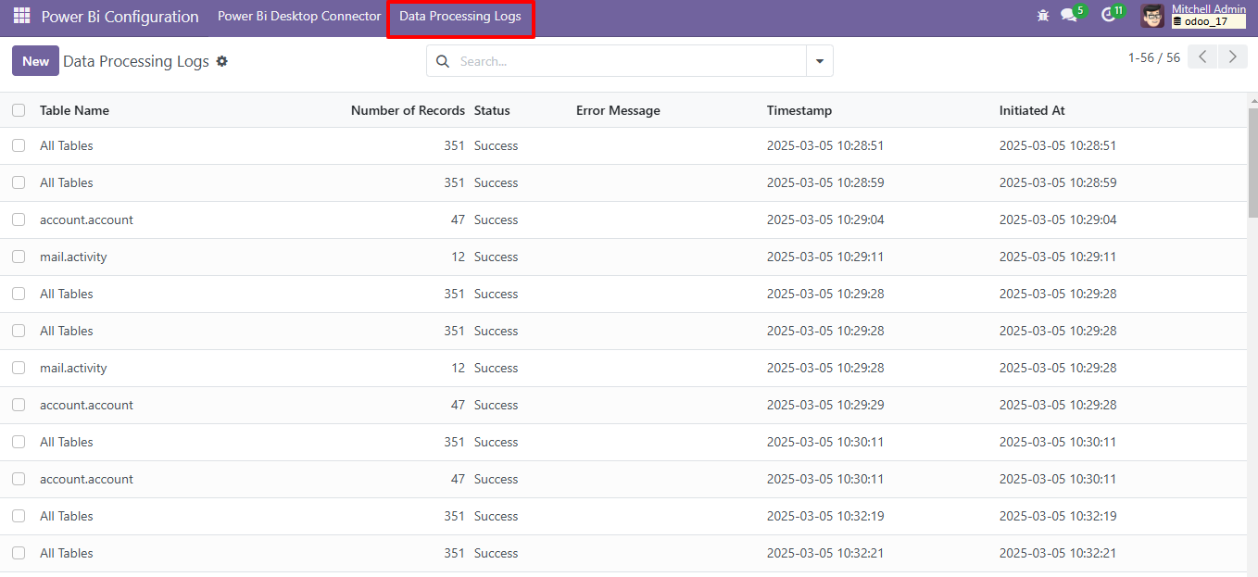
◆ In Odoo Navigate to Power Bi Connector >> Data Processing Logs .
◆ Transaction logs for syncing tables between Odoo and power Bi Desktop are available here.