Odoo Omniva Shipping Integration | Complete Setup, Labels, Tracking & Automation
Overview
Enhance your Odoo logistics with the Omniva Shipping Integration, a complete solution that automates label generation, parcel creation, and real-time tracking—directly inside Odoo. This powerful module streamlines your entire shipping workflow, reducing errors and saving processing time. Designed for e-commerce stores, wholesalers, and multi-country businesses, it supports all major Omniva delivery methods including courier delivery, post office pickup, and automated parcel machines (APM/parcel terminals).
With full coverage across Estonia, Finland, Latvia, and Lithuania, the Omniva Integration ensures fast, accurate, and flexible delivery management. Improve customer satisfaction with instant tracking updates, optimized order handling, and seamless shipping automation—turning your Odoo system into a professional logistics hub.
Hot Features
◆ Automated Shipment Creation
◆ Automatic Label Attachment
◆ B2C Shipment Support
◆ API-Based Integration
◆ Real-time Label Generation
◆ Quick API Key Setup
Features
◆ Automatically generate PDF shipping labels.
◆ HS Code configuration for non-EU destinations
◆ Test API connection before use
◆ Company-level configuration
◆ Create shipments directly from delivery orders
◆ Support for demo and production environments
◆ Support Community and Enterprise Editions
◆ Easy to use.
Work Flow Of SmartPosti
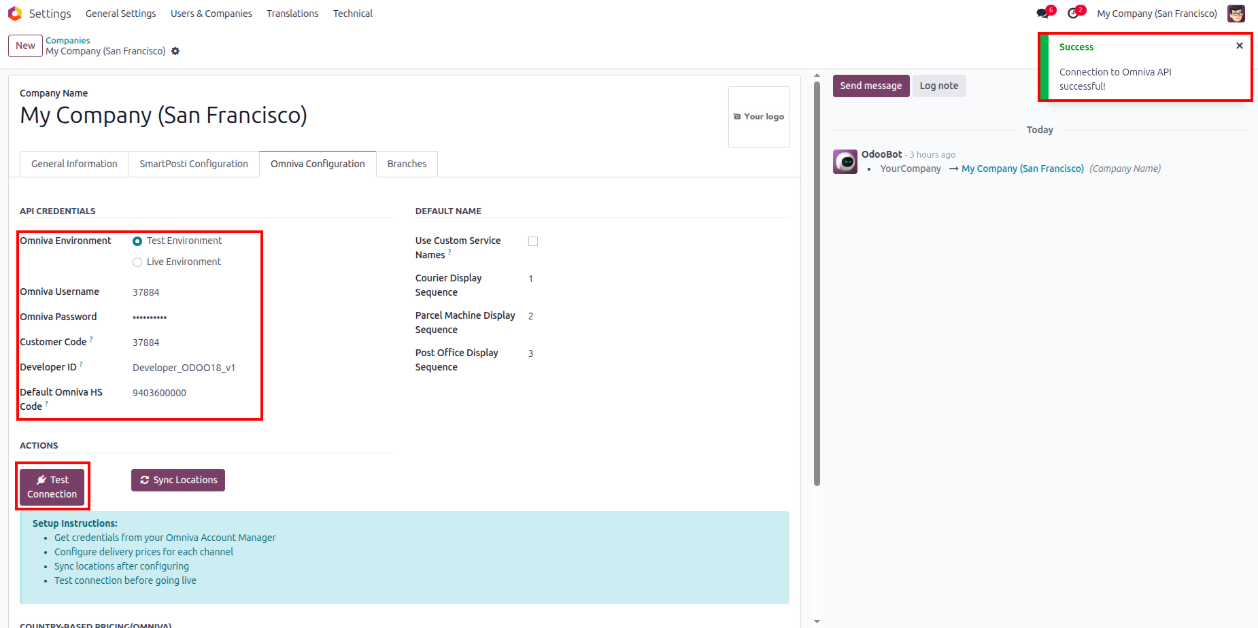
- Navigate to Settings >> Companies there user will find Omniva Configuration page.

- Here after filling correct details you can Test API connection by clicking on the button called Test Connection..
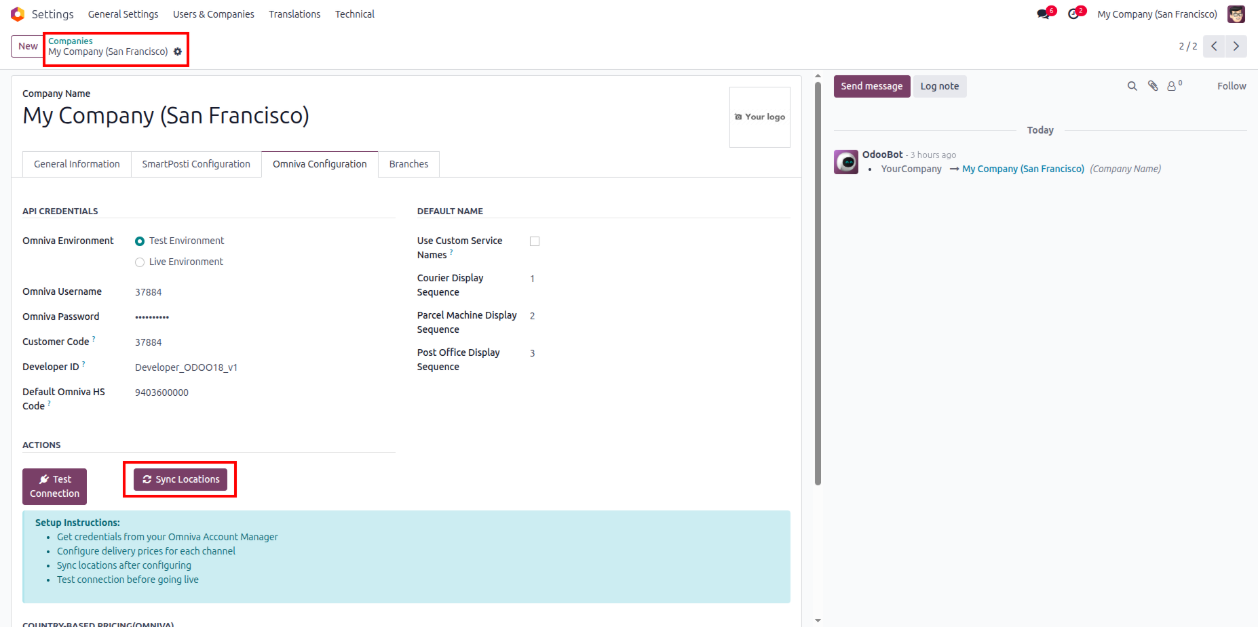
- Then by clicking on sync locations button you will get the omniva places from omniva to odoo.
- After that go to Inventory >> Configuration >> Shipping methods
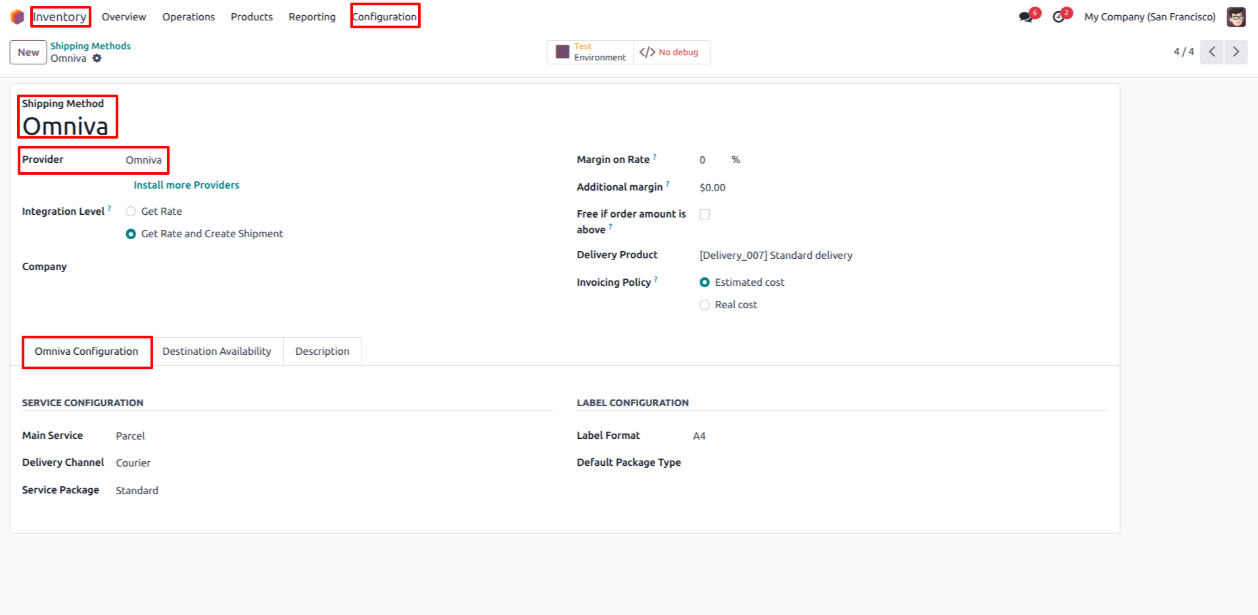
- Now it's time to create sales order with omniva shipping.
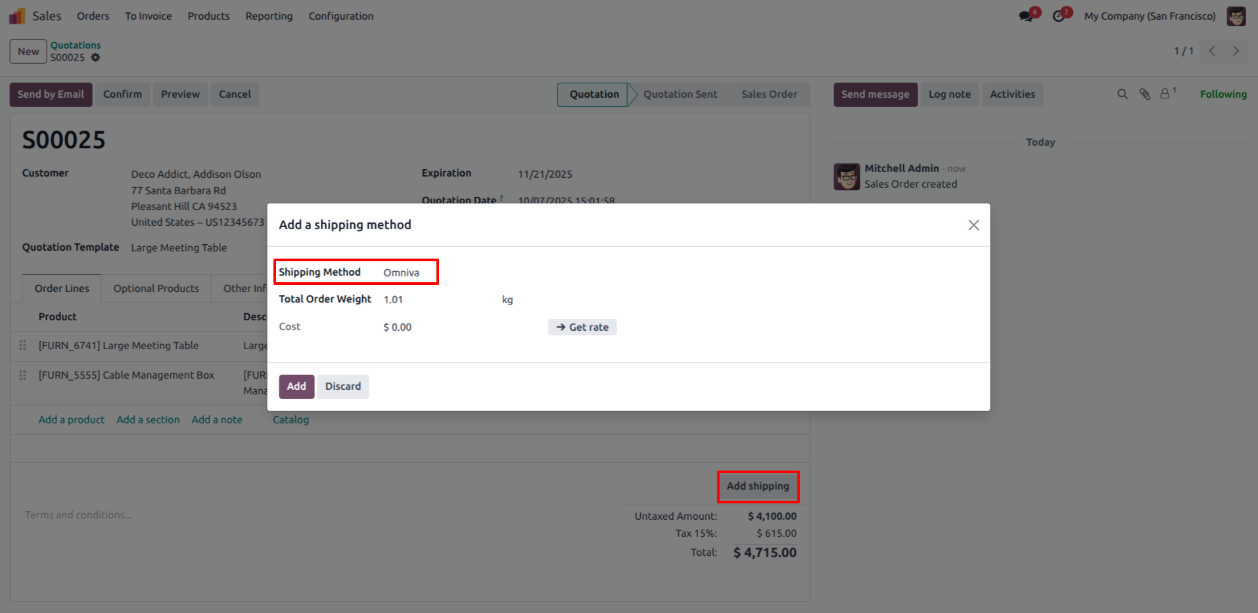
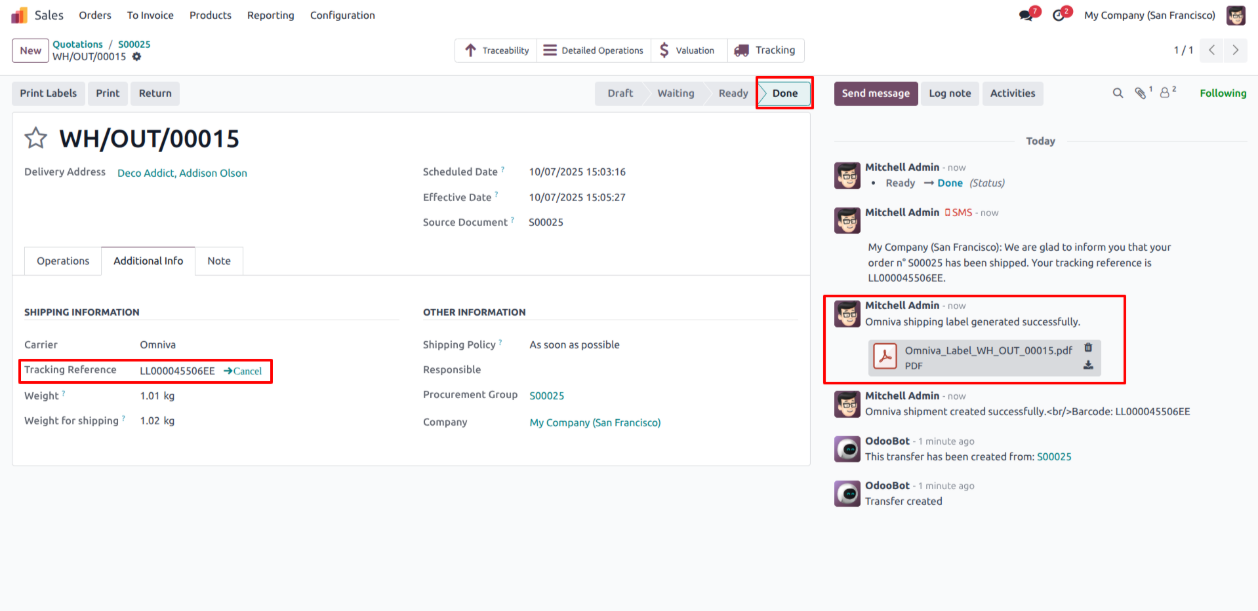
- After sales order confirmation, Now inside the Delivery Order click validate button.

- Retrieve the Automatically generated Shipping label and Tracking number in the delivery order.

- Add delivery prices from company field Country-Based Pricing(Omniva) under page Omniva Configuration.
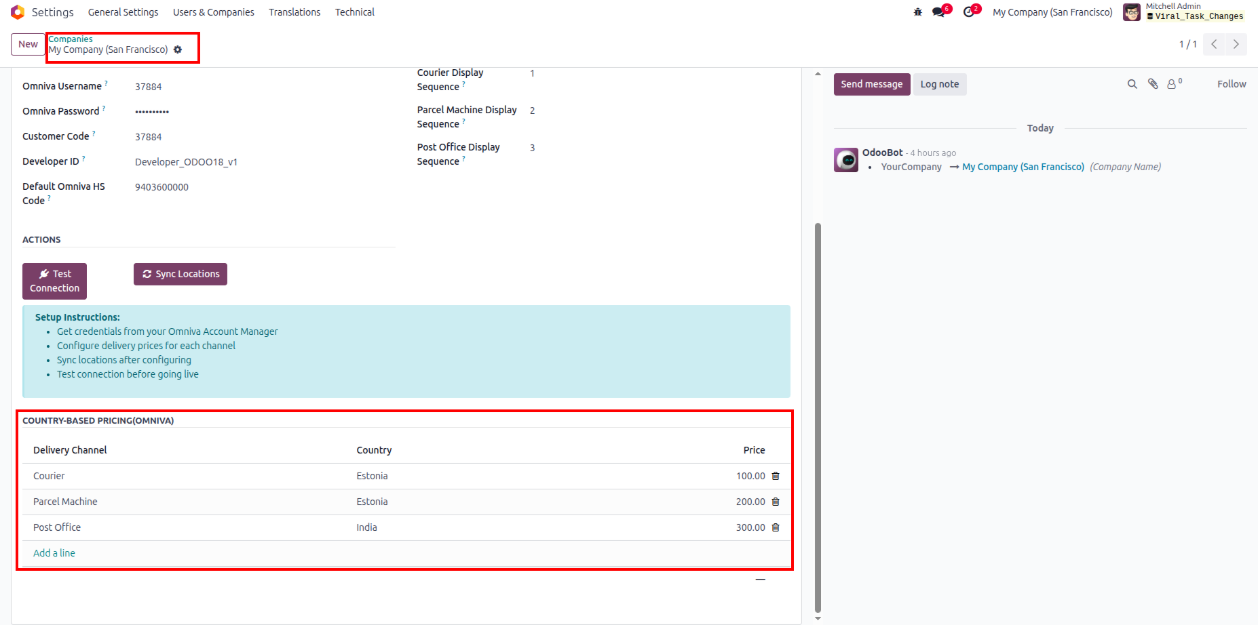
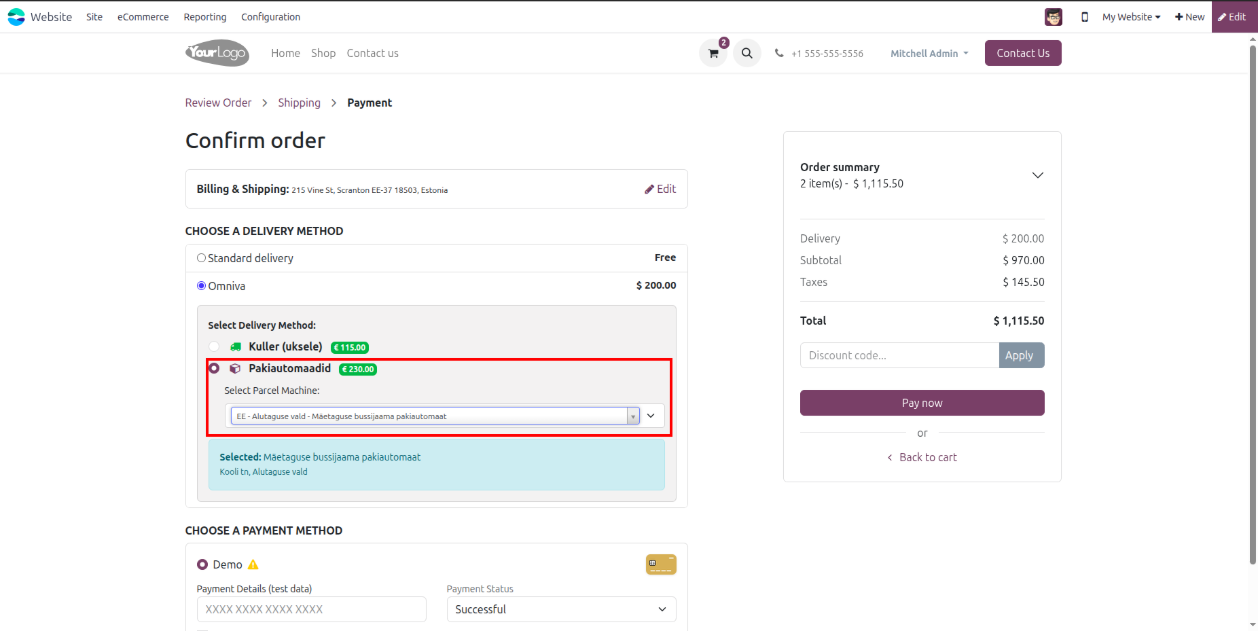
- These delivery prices will be directly visible in front side.

- Also, user will see fields Courier Service Label, Parcel Machine Label & Post office Label when enabled Use Custom Service Names under Default Name section of company page Omniva Configuration.
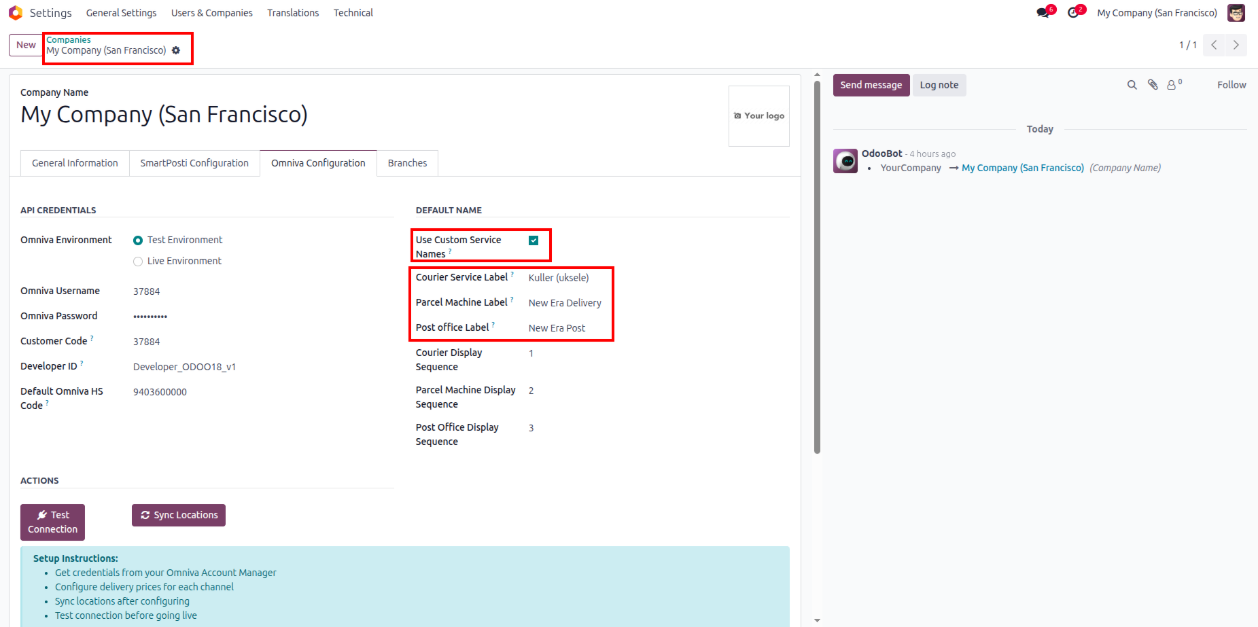
- Later if user change the field Parcel Machine Label with custom label as ex, New Era Delivery these same name will be shown into website checkout page.
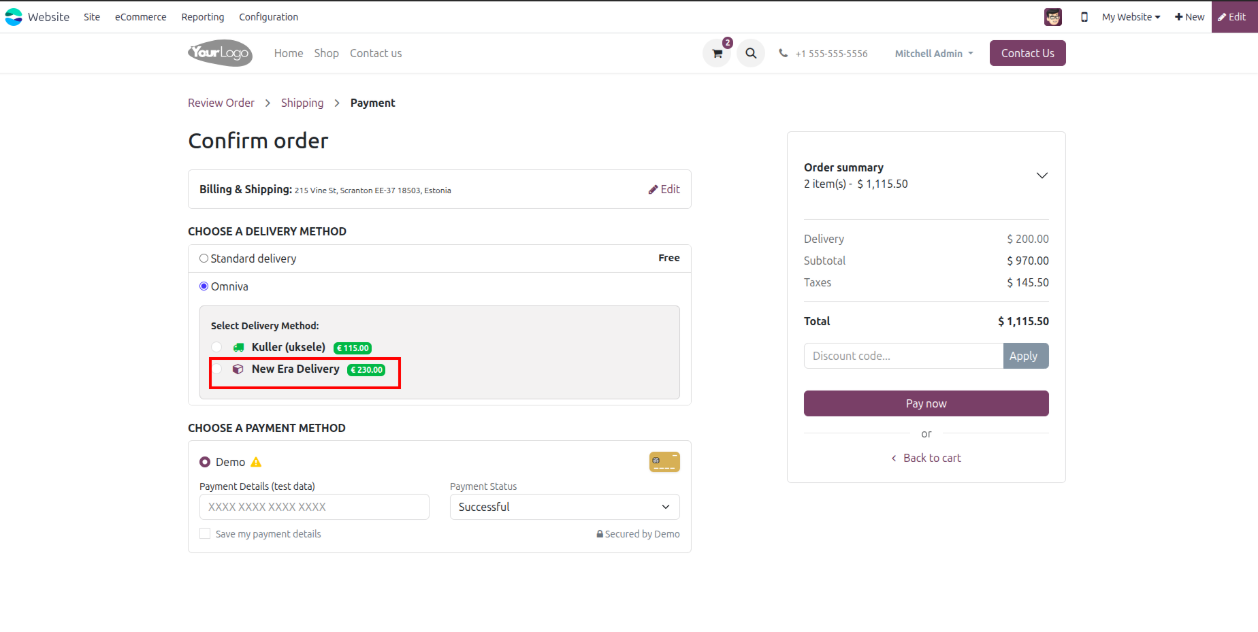
- From here you can select the omniva places which is already synced and available in the omniva locations accordingly.